The list, the plans, and more
Before Fube opens to everyone, you can join the list with a square of your own, and the friends you bring sit beside it. Plans are drawn as the walls they give you, checkout and Billing show exactly what you pay for, and every email shows the wall it is about. Help is all in one place too: a guide, feedback from any screen, what's new, and your privacy.
Join the list before Fube opens
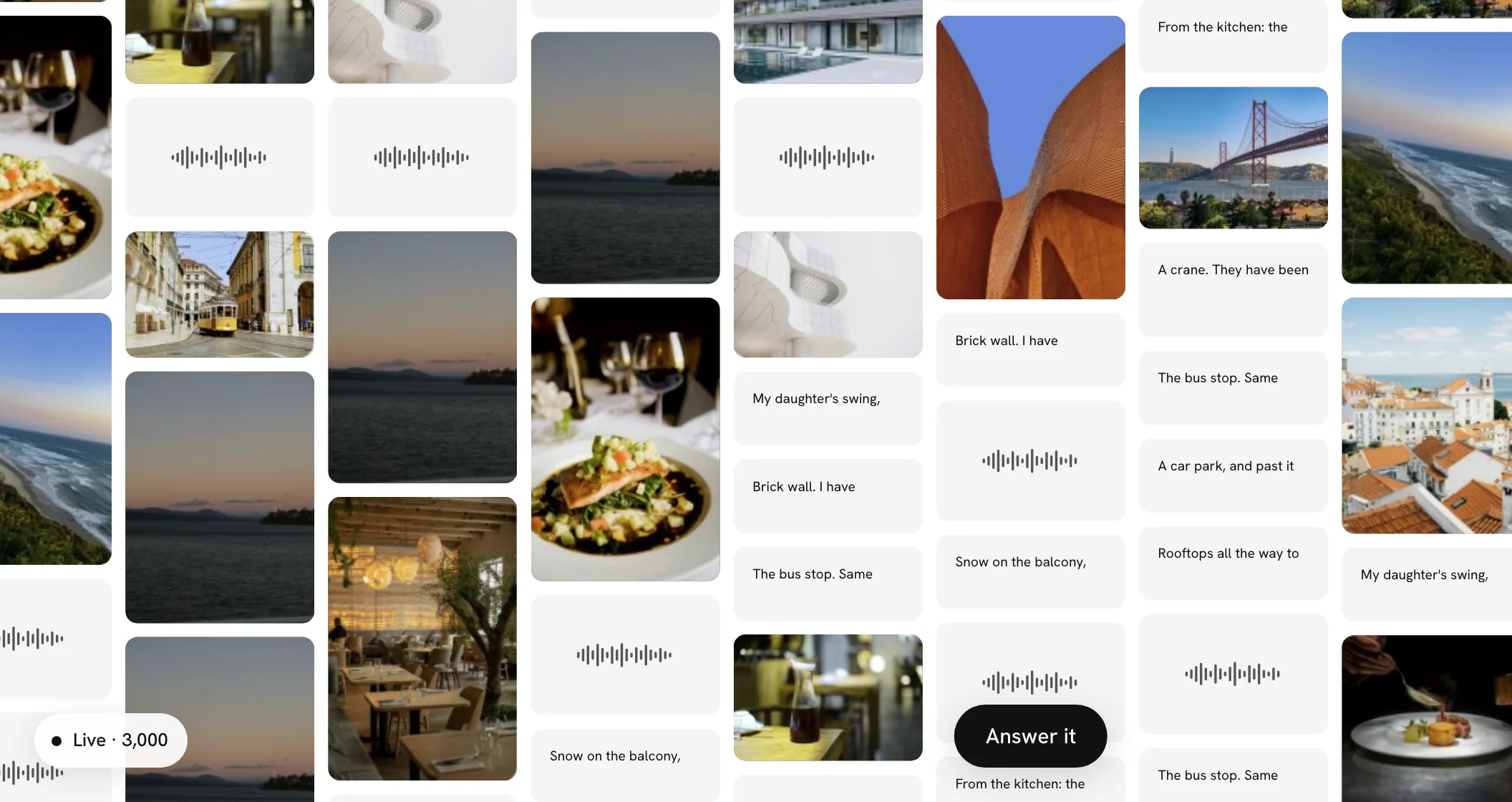
Fube isn't open to everyone yet, so the front page is now the list. Write a line or make a drawing, add your email, and press Add it.
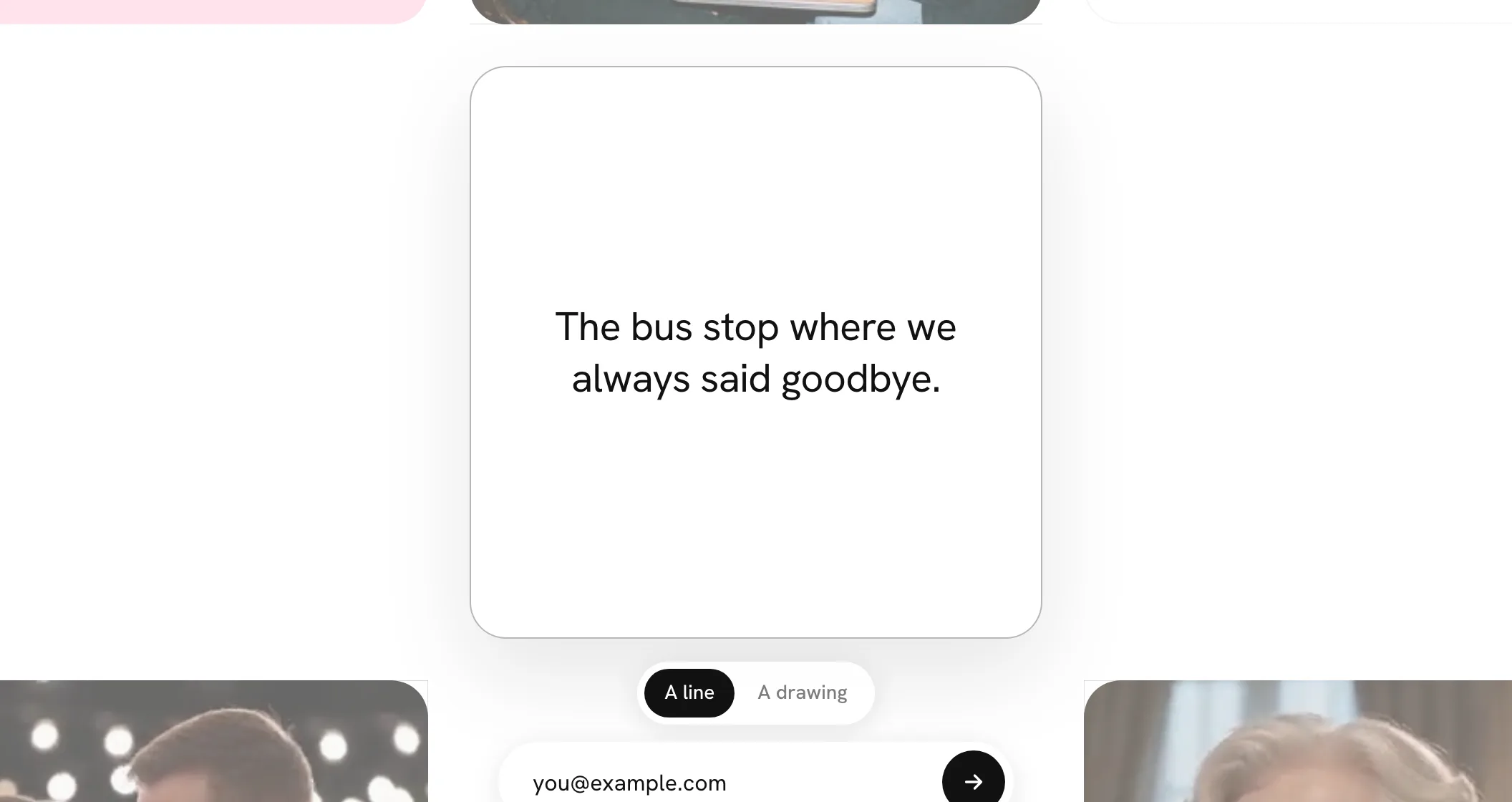
Your square turns over and takes its place among everyone else's.
Bring your friends. Beside your square are three empty seats. Share your link, and the first three friends who join through it sit next to you. Come back later and you'll see them there.
The seats beside your square
Joining the list asks for your first name as well as your email, so the people you bring know it's you. You get an email to say you're on the list, another when friends take the seats beside your square, and one more when it's your turn.
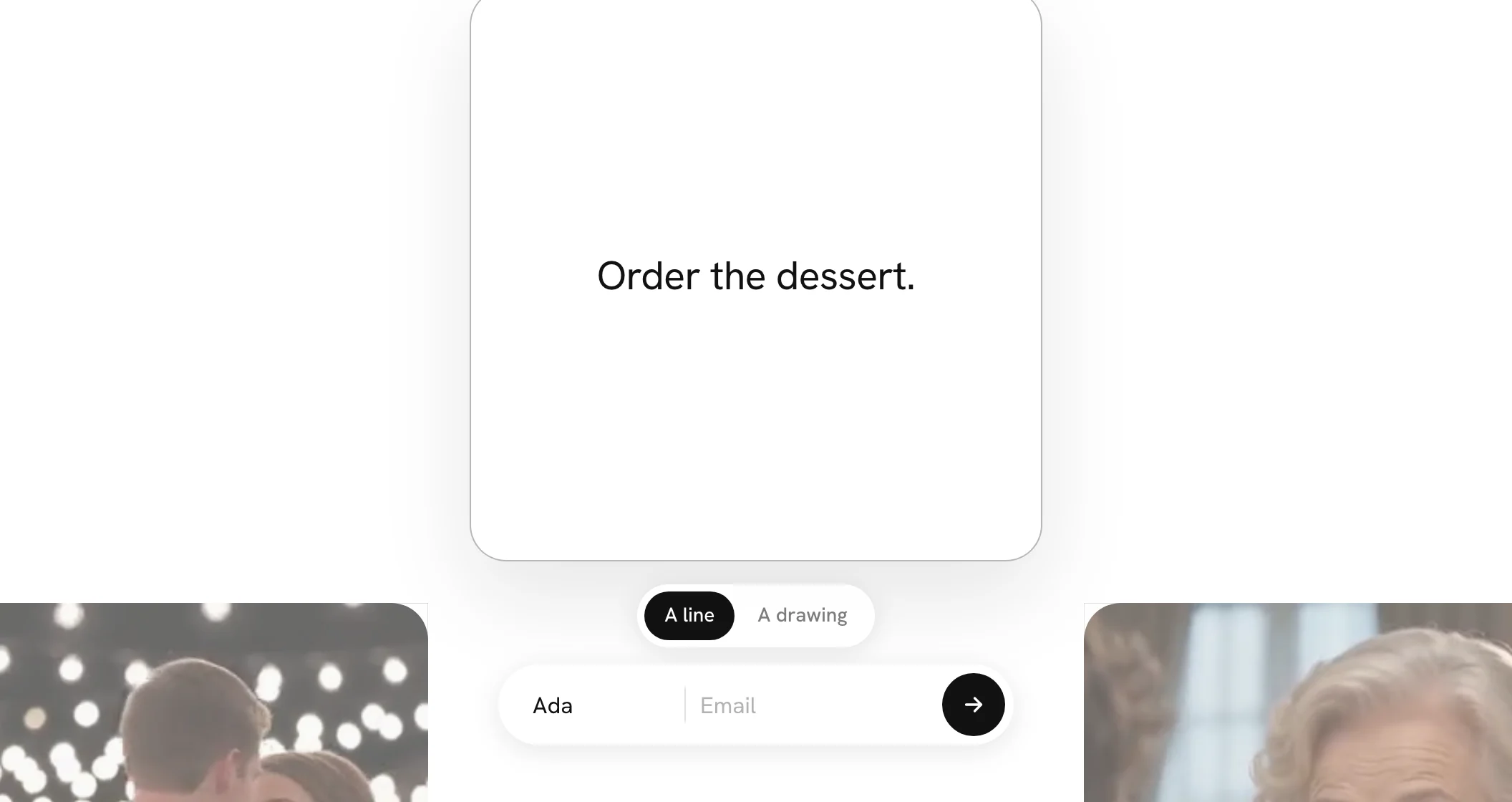
Your friends, by name. When someone joins from your link, their square sits next to yours with the name they gave. If a few join close together, they come in one email, and each friend is only ever mentioned once.
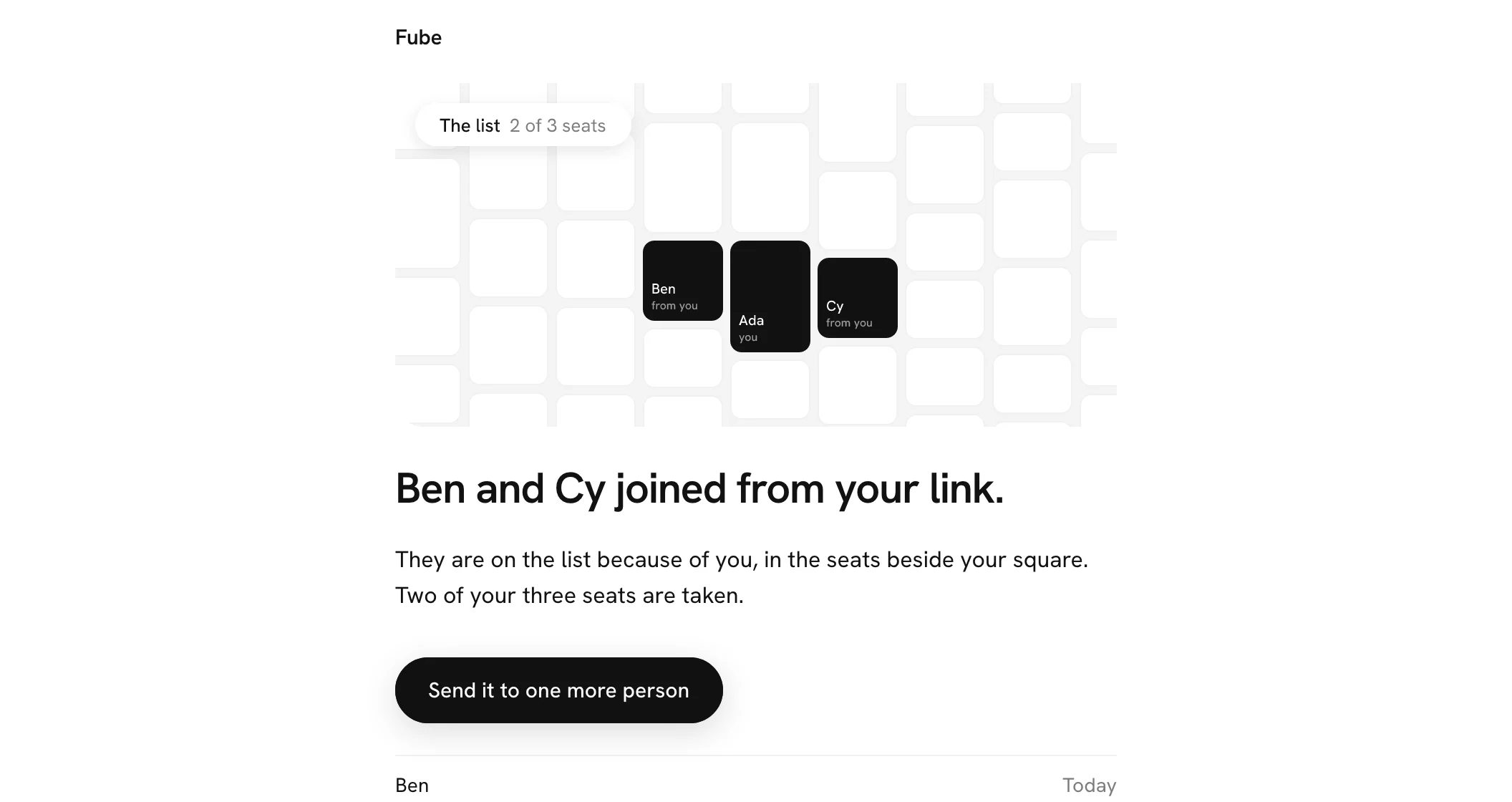
When it's your turn. We let people in a few at a time, in the order they joined. When it's yours, the email names the friends in your seats, so your first wall already has people to add to it. Sign in with the same address and you're in. Sign in before then and we tell you you're on the list, and show you your square.
Plans, shown as walls
Fube's plans now have a page of their own. Free, Plus and Pro are each drawn as the wall they give you, so you can see the difference instead of reading a list. Every wall starts free.
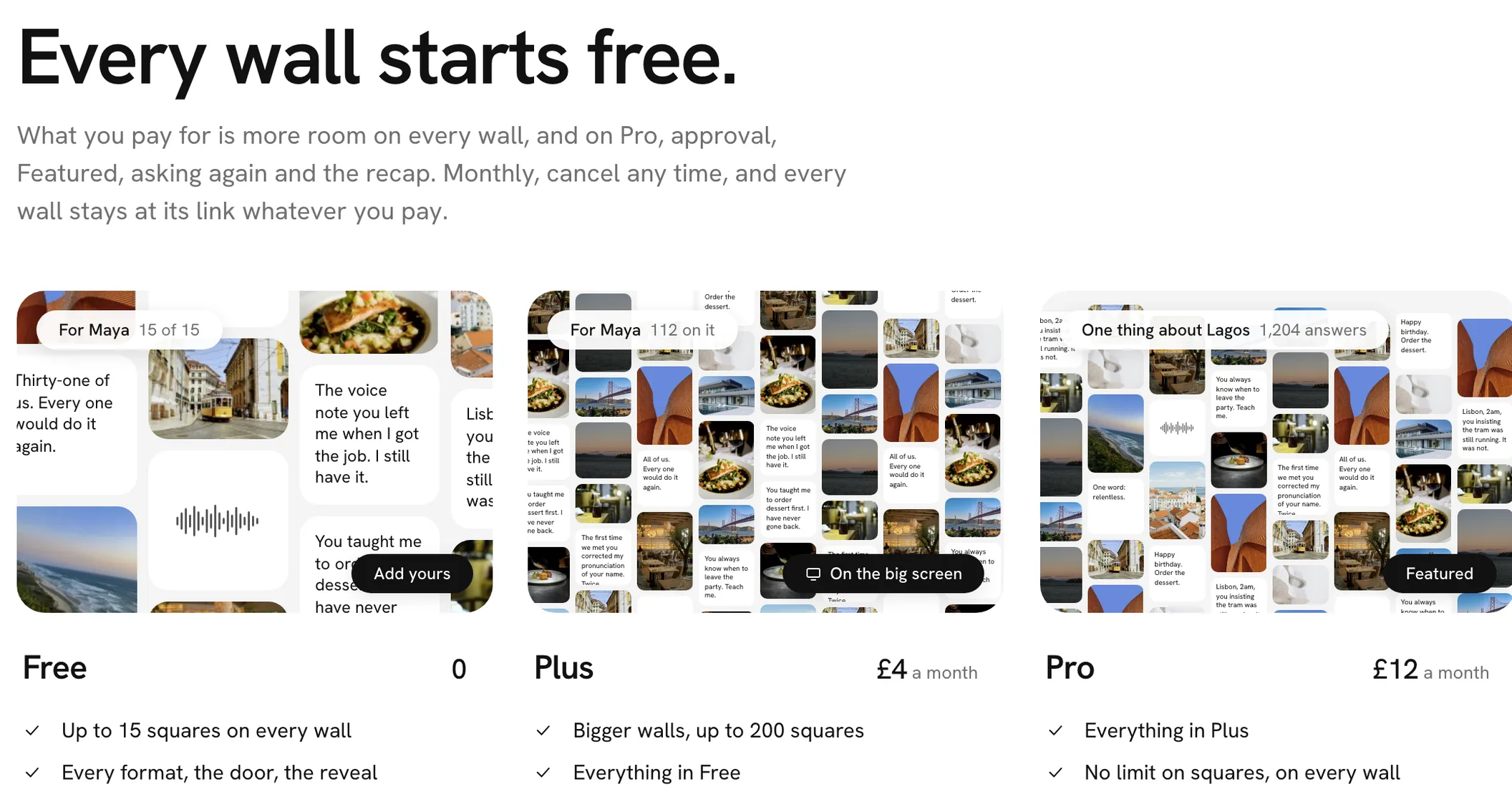
Plus gives every wall room for 200 squares. Pro has no limit, and adds approval, Featured squares, asking again and the recap.
When a wall fills up. On Free, a wall holds 15 squares. When yours is full, people can still add theirs: their squares wait for you, and nobody is turned away. A card shows you the two ways forward, side by side. Make room is free: choose a square to hold back, and one of the waiting ones goes up in its place. Or start Plus, and the waiting squares go up at once.
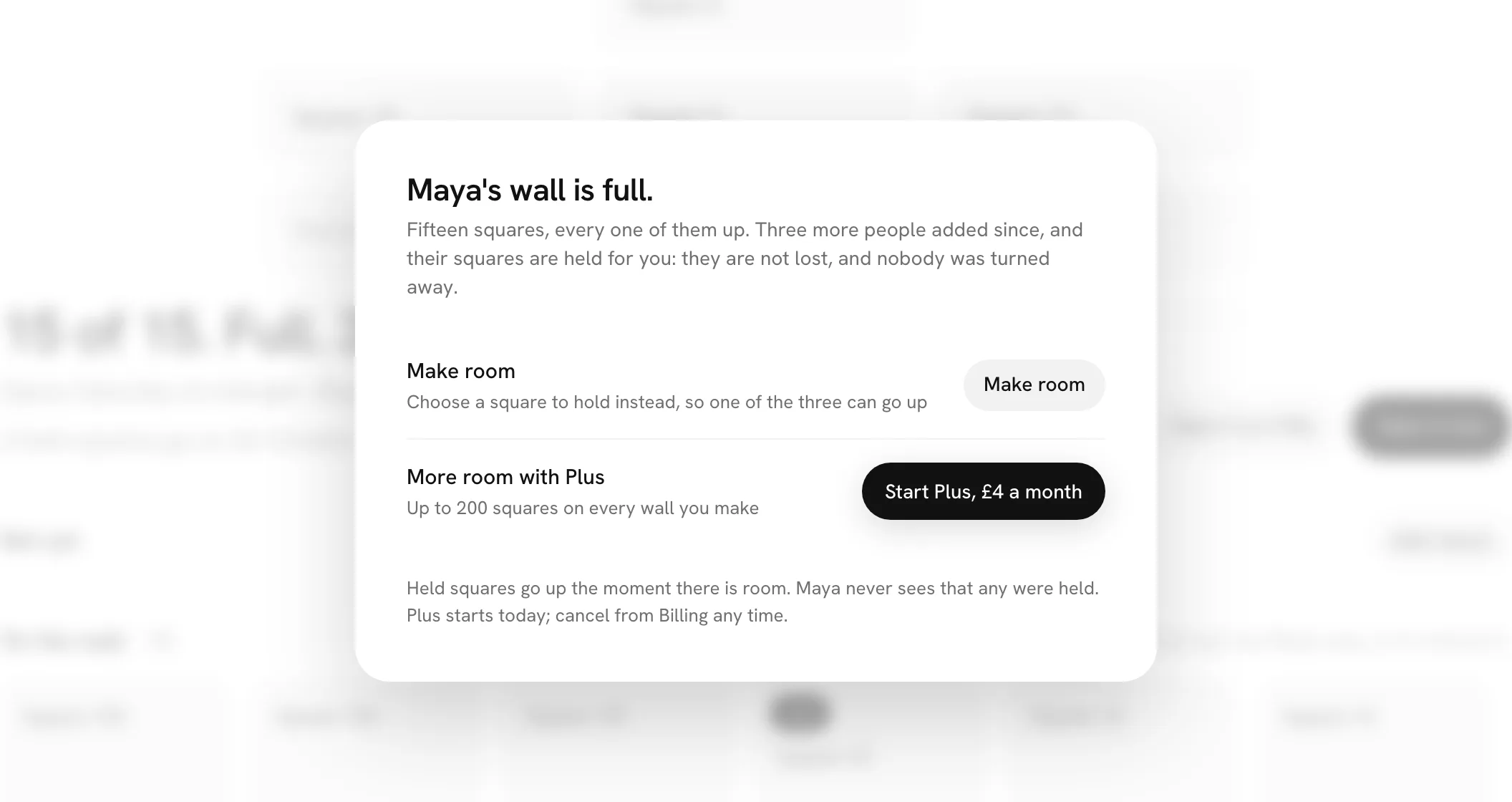
The card comes up once, the first time you see the wall full. After that it is under More room.
Checkout and billing, clearer
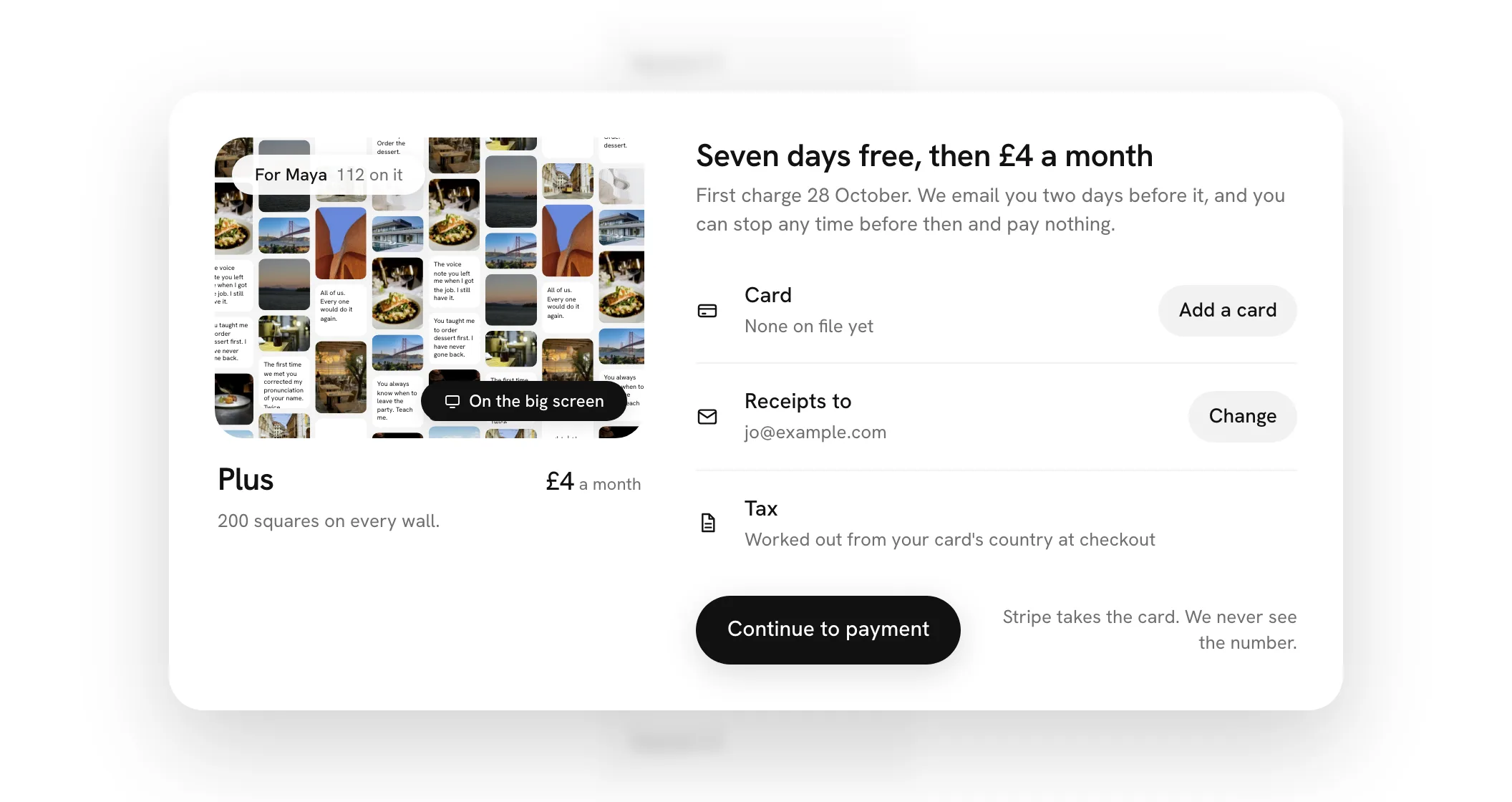
Before you pay, checkout shows what you are getting: the plan drawn as a wall, its price, the day of the first charge, and where your receipts go. Your first plan starts with seven days free, and we email you two days before the first charge, so you can stop before then and pay nothing.
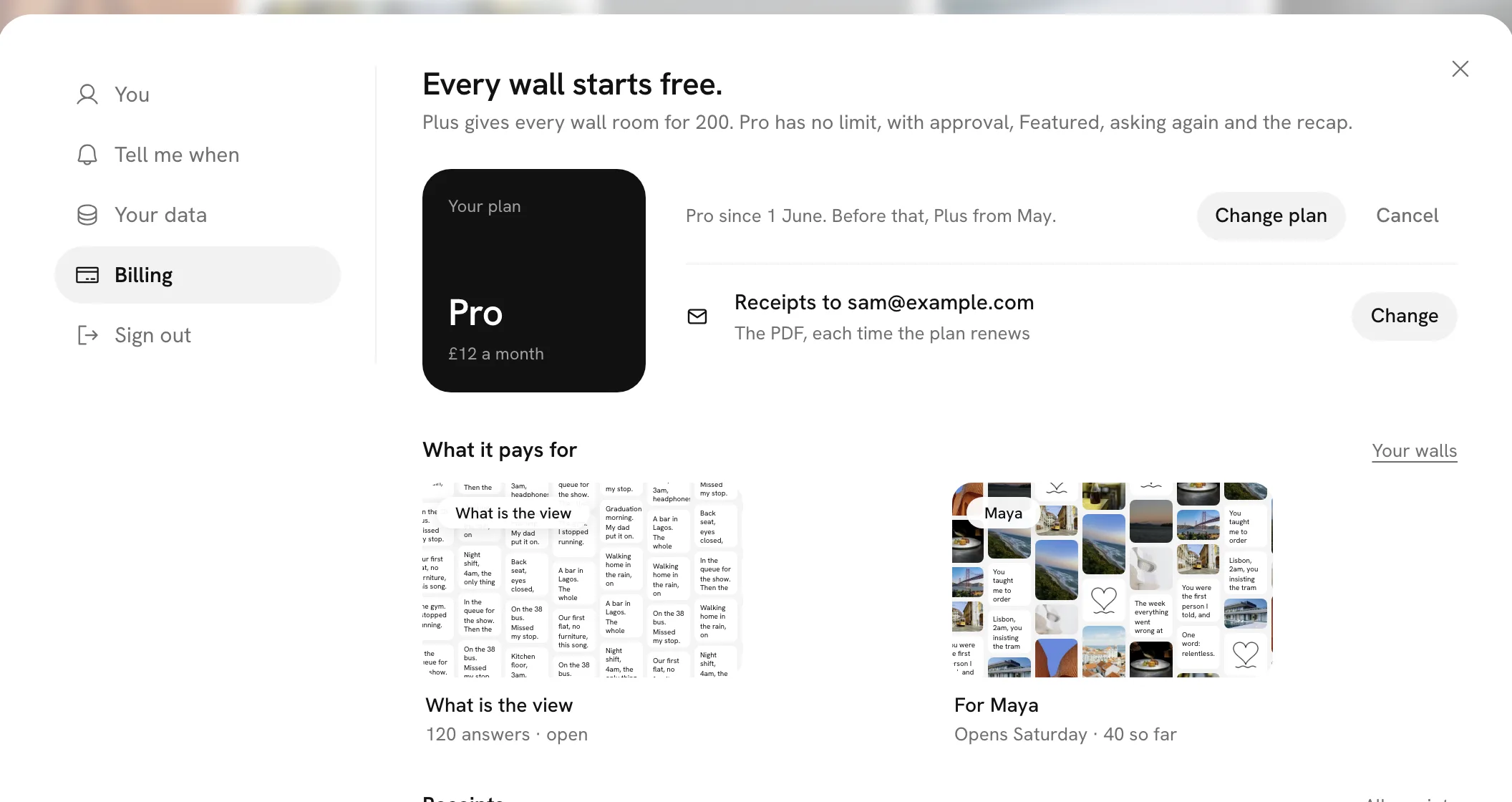
Billing. Settings › Billing shows your plan and how long you have had it, the walls it pays for drawn small from their own squares, and your latest receipts. Change plan and Cancel sit on the same line.
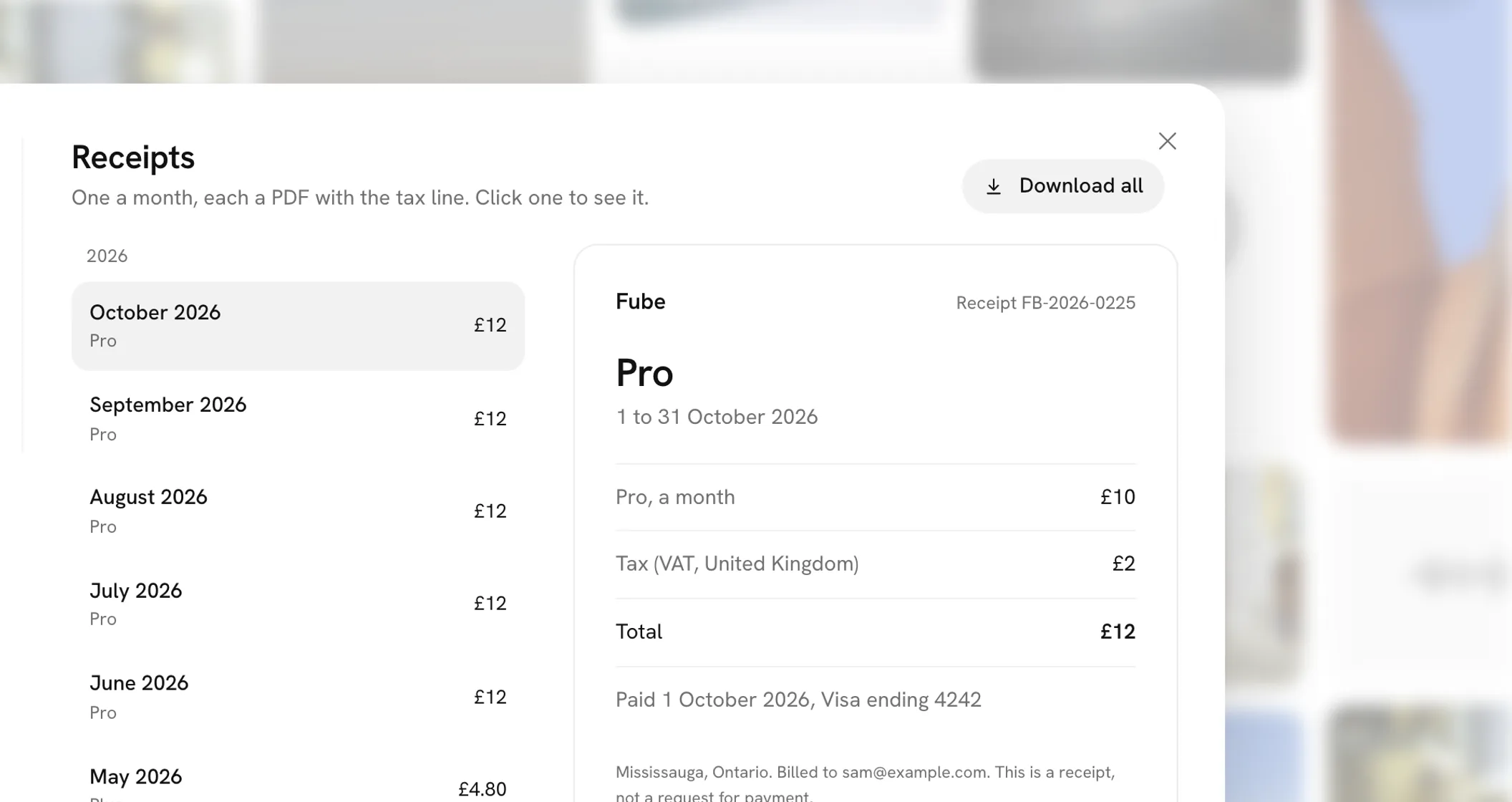
Receipts. Every payment gets its own numbered receipt with the tax on it. Open one to see it in full, download it as a PDF, or send it to your email. Download all gets every one at once.
Emails that show the wall
Every email from Fube now shows the wall it's about. An invite shows the wall with the names already on it. A reply shows your square with what they wrote back. The day's round-up shows who added today. You can see what's going on before you open anything.
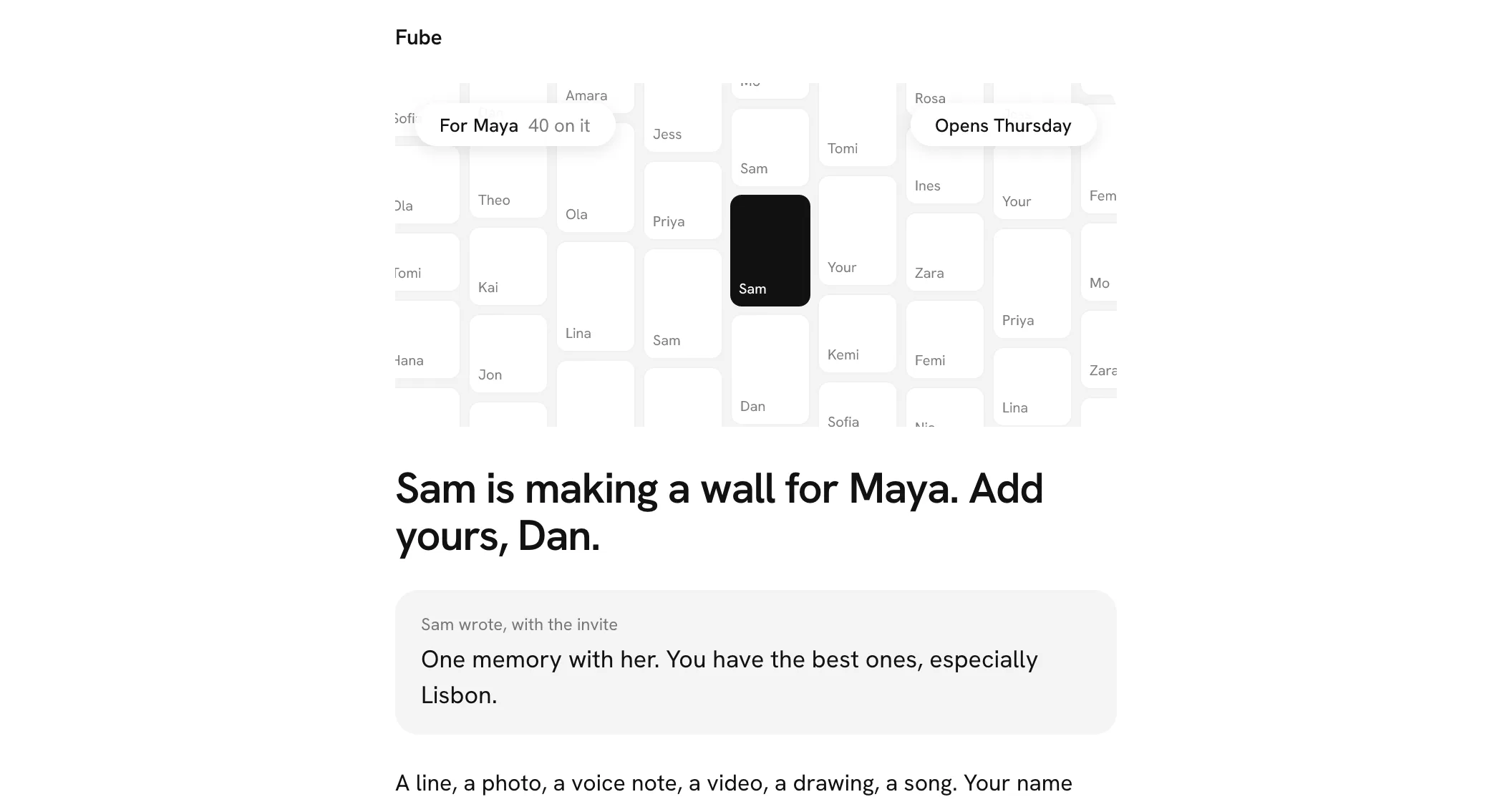
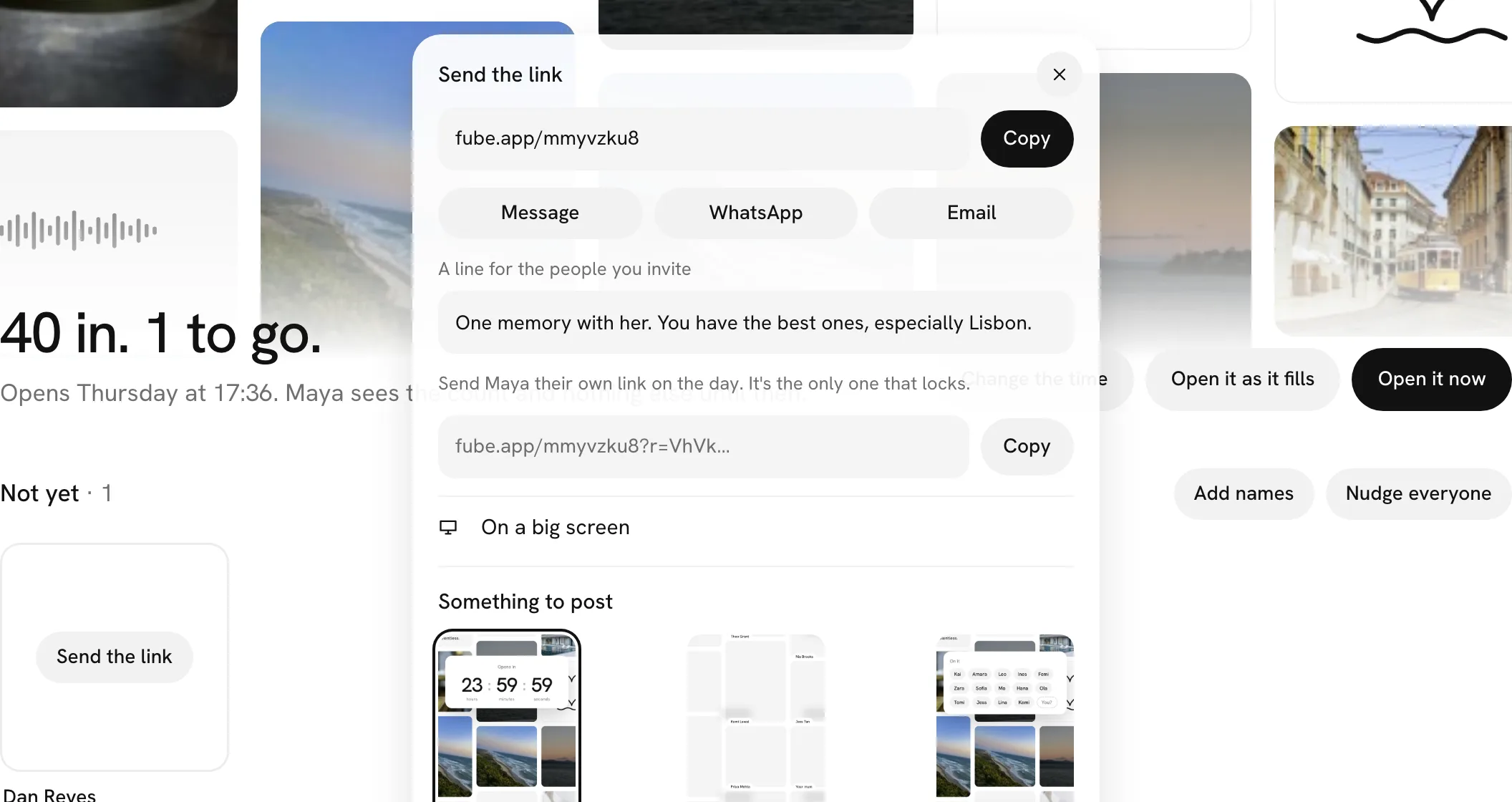
A line from you, in every invite. When you send the link, you can write one line for the people you invite, right under the link. It goes at the top of every invite email Fube sends for you, and in the preview when the link is shared. It never appears on the wall itself.
What else looks different.
- Your sign-in code comes in six big boxes, with a note saying where the sign-in was started.
- When someone writes back to your square, the email shows your square, what it said and their reply.
- The email you get to keep track of your square shows the square, the day you added it and when the wall opens.
- Receipts show the wall your plan paid for that month and how many squares it got.
- Every email says why it came and how to stop it. Mail apps can also unsubscribe you in one tap, and that turns off the matching setting in Settings.
A guide to Fube
There is now a guide at fube.app/help: twenty short answers about making a wall, adding to one, question walls and your account, each a two-minute read. Ask it a question the way you would ask a friend, and the answer comes up as you type.
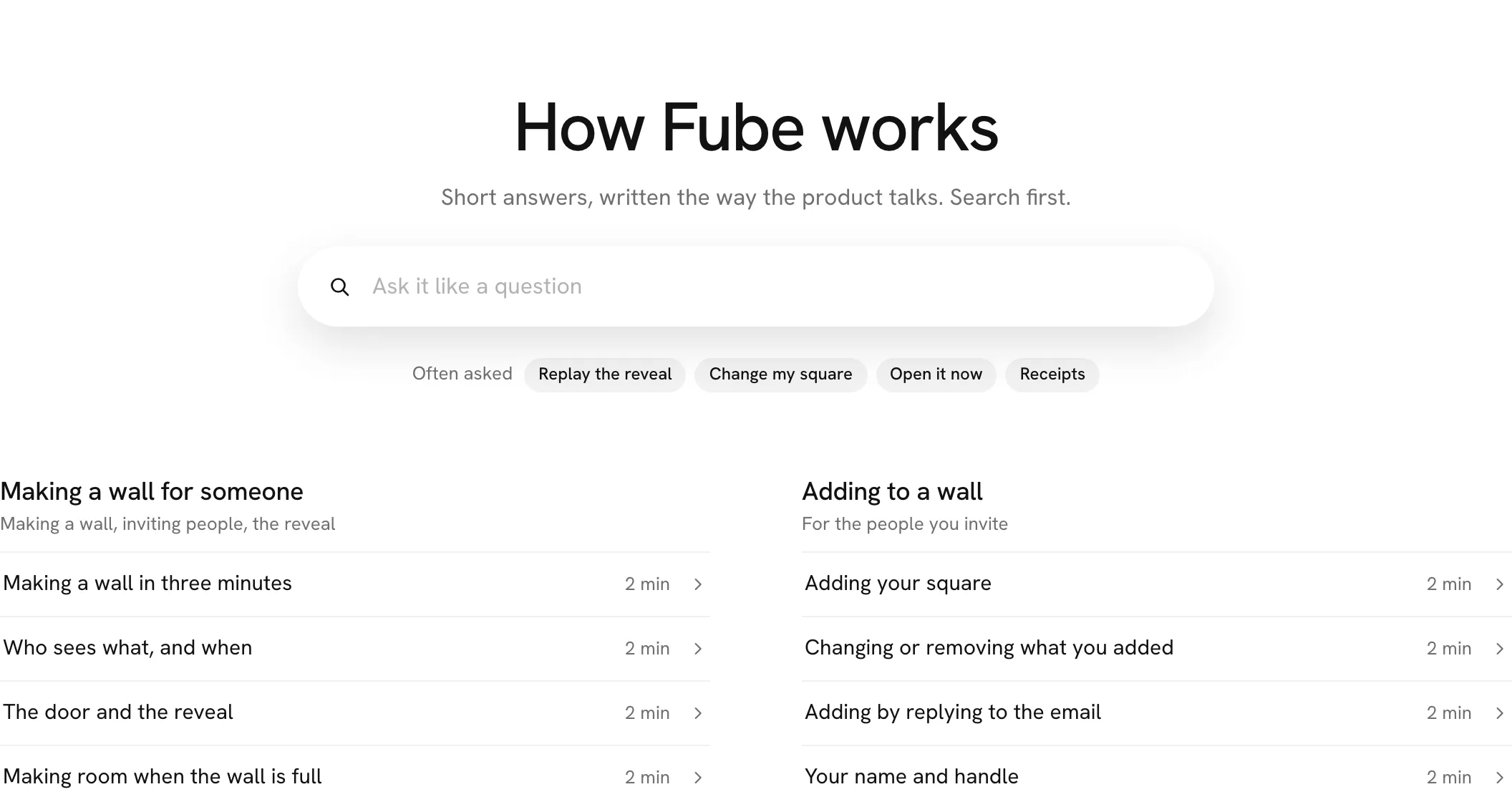
Ask it like a question. Type where is my code, or can I change my square, and the articles that answer it drop under the field, with the line that answers it. Enter opens the first one.
Did this answer it? Every answer ends with that question. Not quite tells us which answer missed, so it can be written better.
Find it in the menu top-left, under Help, User guide.
Send feedback from any screen
You can tell us about a bug or an idea from wherever you are in Fube, in your own words. Everything else we need comes with it on its own, including a picture of the screen you were on, so you never have to explain where you were or what you pressed.
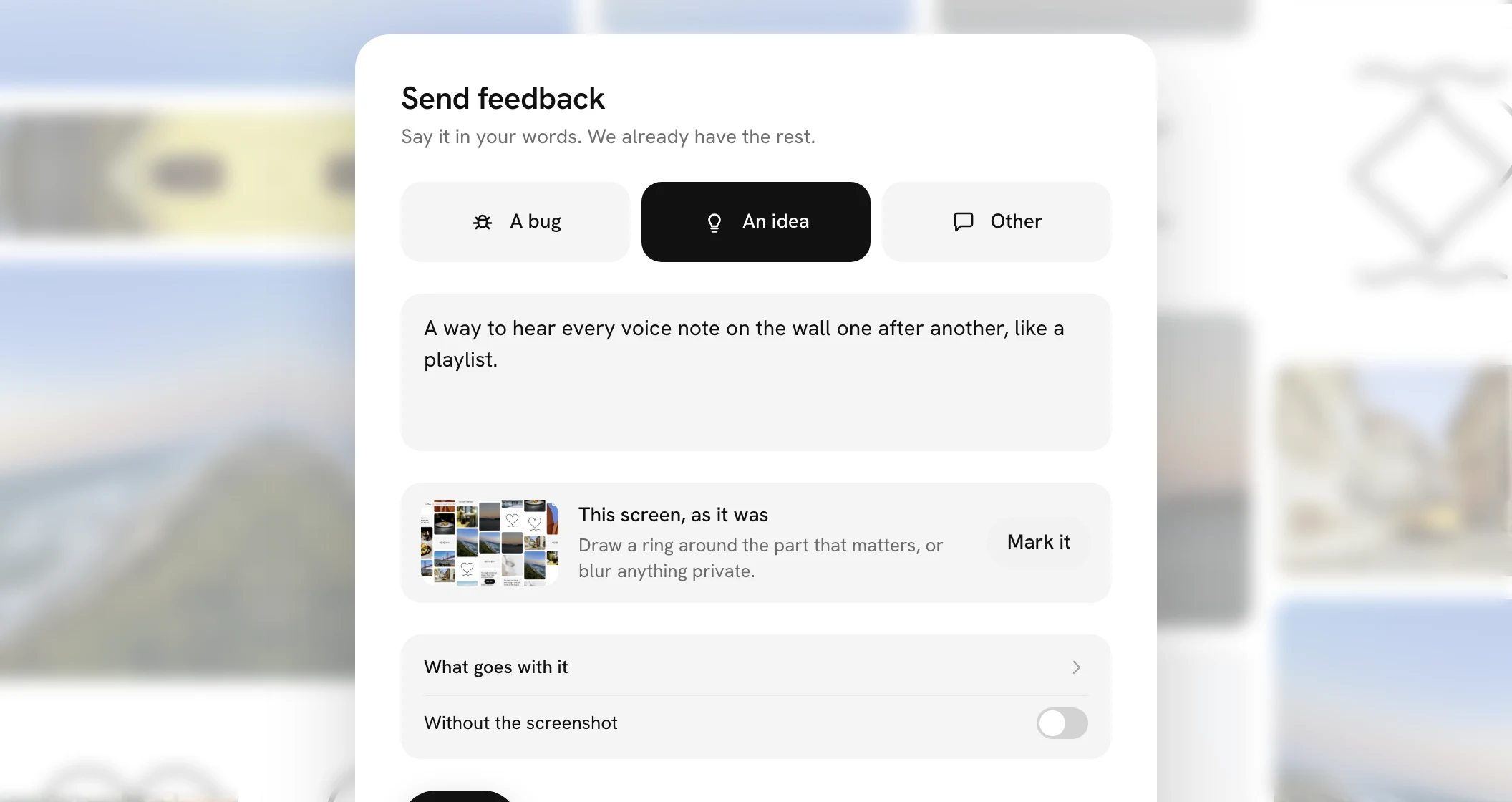
Where to find it. Press your name at the top left, then Help, then Send feedback. It is also at the foot of the guide, under your receipts, and next to Try again whenever something did not go through. On a computer, type ? and then f.
Ring it, or blur it. Press Mark it to draw a ring round the part that matters, point an arrow at it, or blur anything private. The blur happens on your device, so what you cover never leaves it. If you would rather not send the picture at all, turn on Without the screenshot.
What goes with it. Open What goes with it to see exactly what is sent: the page, the wall and your part in it, your browser and screen size, the version of Fube, the last few things you pressed, and any errors the page hit. Never what anyone wrote, never anyone else's name, and never what you typed into a box. A person reads every one.
Your feedback, and what we said back
Everything you send us is a conversation you can come back to. Open Help and then Your feedback to see each thing you sent, everything we wrote back, and when it was fixed. Answer us there or just reply to our email: both end up in the same place, and a person reads it.
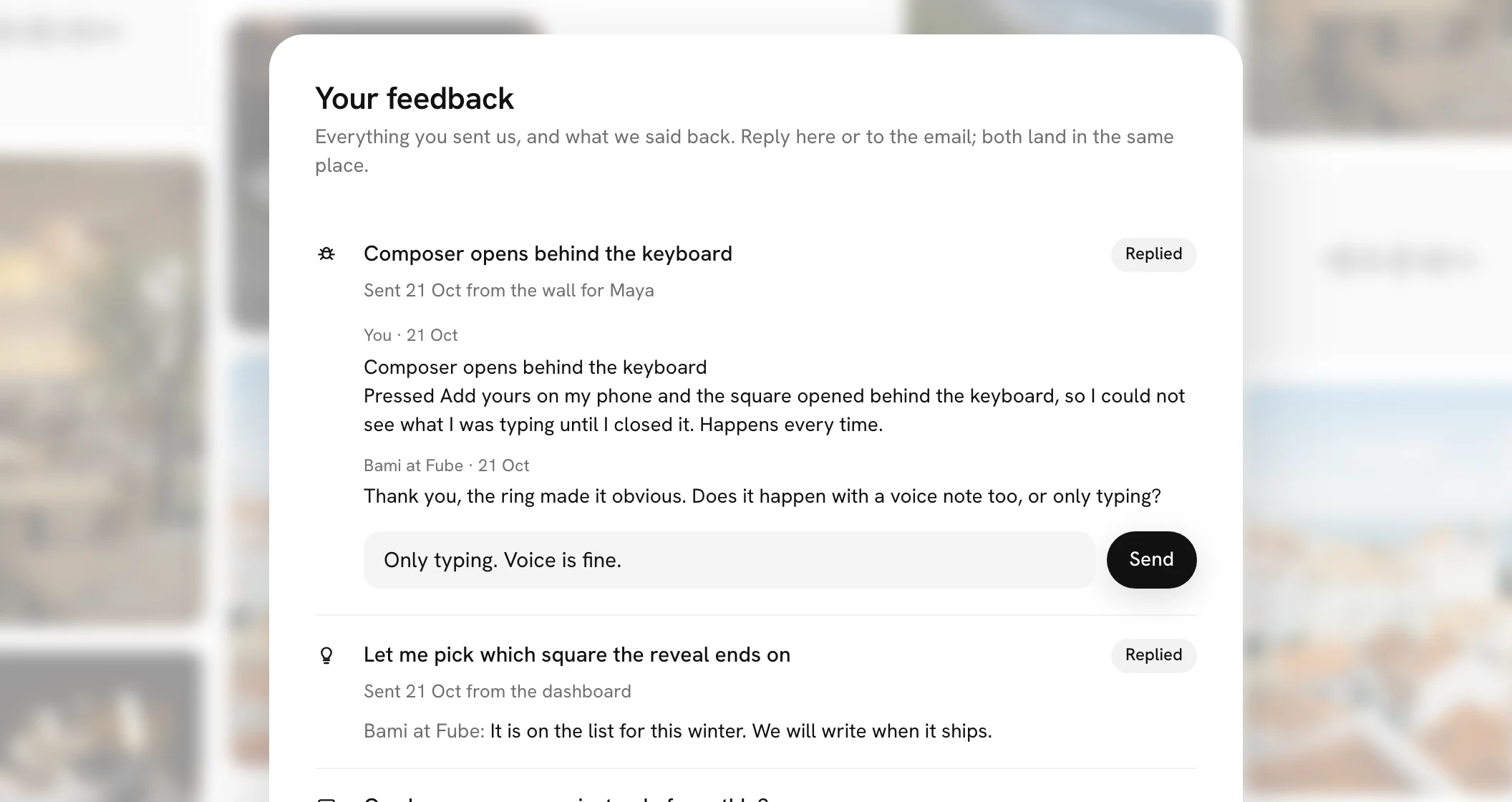
When it's fixed. When we fix something you told us about, you get one email saying so, with what changed. If a few people reported the same thing, each of you hears once.
Without an account. If you sent feedback without signing in, the link in our email opens your conversation, so you can still read it and answer.
What's new, in one place
What's new in Fube has a page of its own. Each update is written out in full, with a picture when there is something to see, so you can catch up on what is new in a minute.
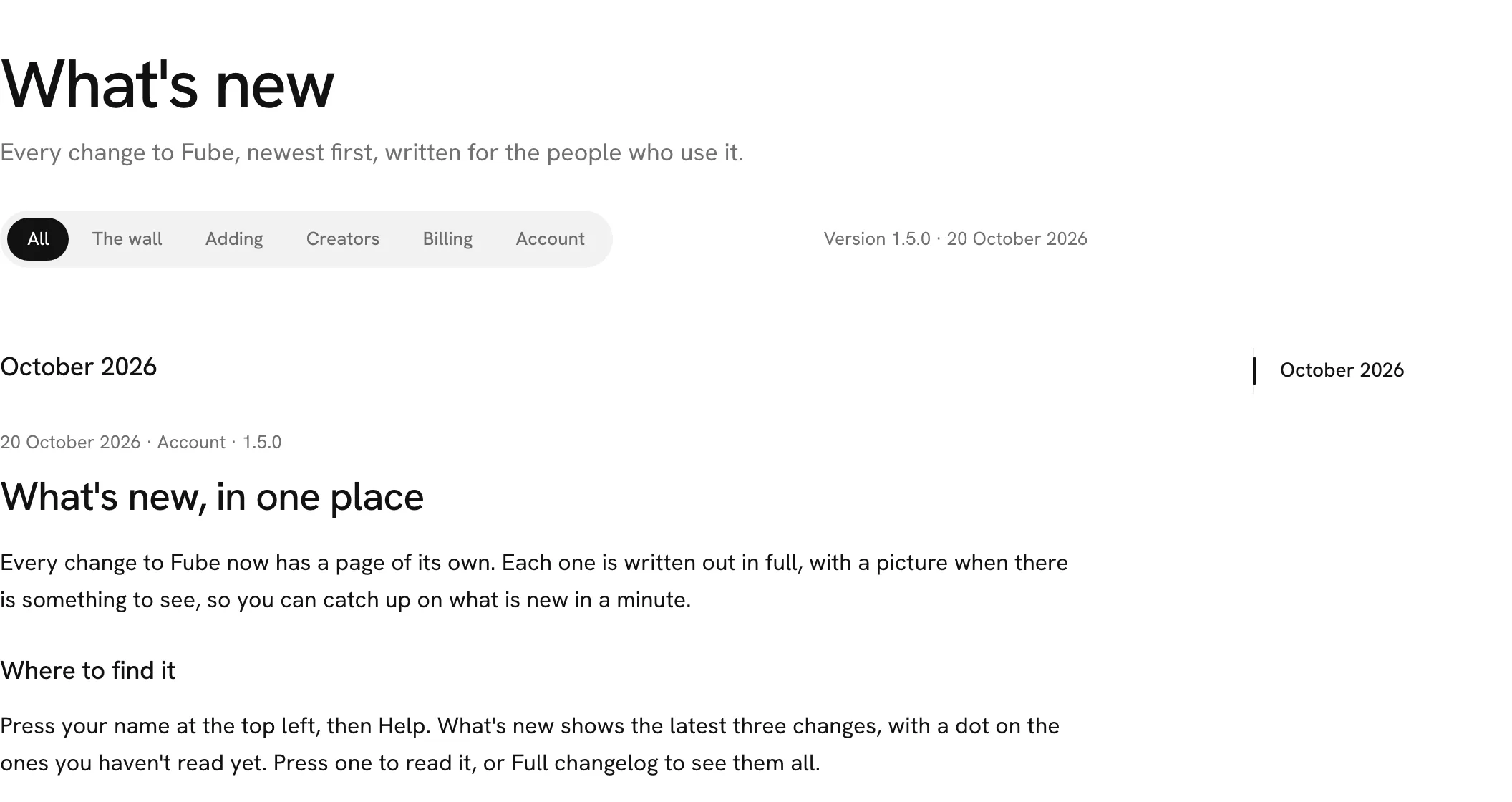
Where to find it. Press your name at the top left, then Help. What's new shows the latest three updates, with a dot on the ones you haven't read yet. Press one to read it, or Full changelog to see them all.
On a computer, the months run down the right-hand side, so you can jump back to any of them. The pills at the top show only the changes to one part of Fube, like Billing or the wall.
The privacy centre
Everything about your privacy is on one page, at fube.app/privacy. It starts with five plain sentences on how we treat what you make, then the four things you can do about your data, then every document in full.
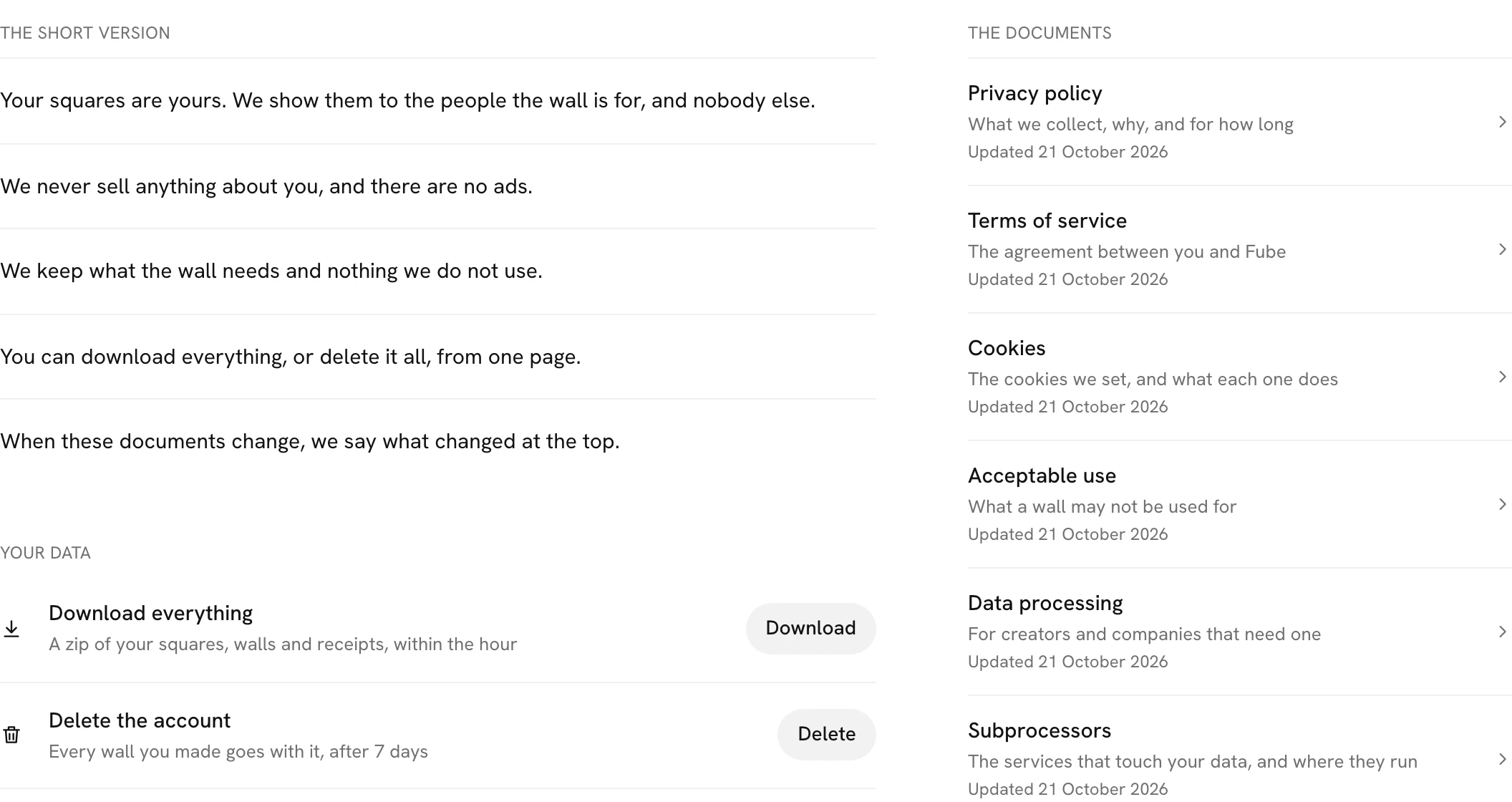
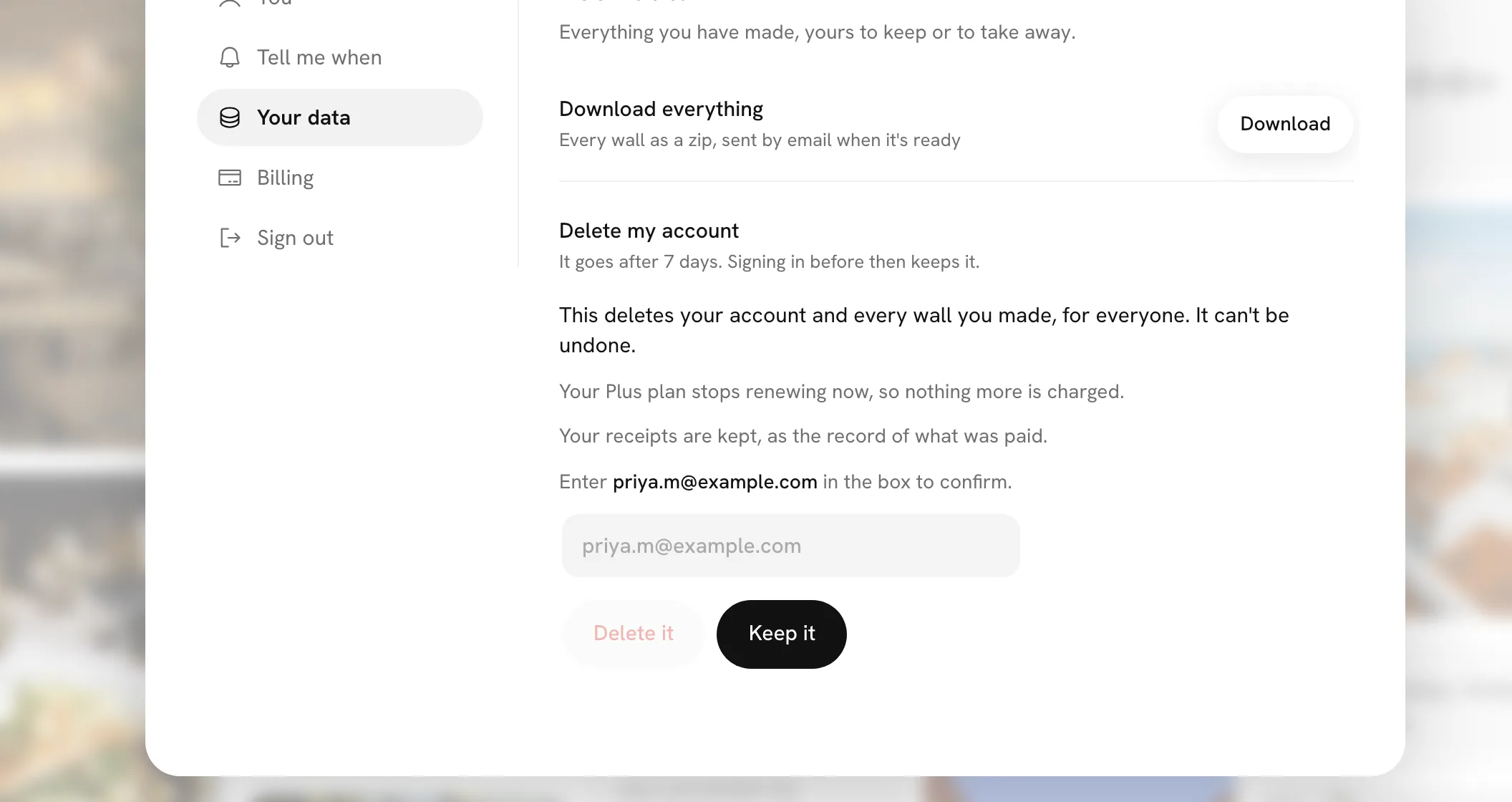
Your data, from one page. Download everything sends you a zip of your walls, the squares you added to other people's walls, and your receipts, usually within the hour. Delete the account takes you straight to the place in Settings where you confirm it. There is also a link to the guide's short answer on who sees what, and our privacy email to copy.
What changed, at the top. Each document says what changed in its newest version, right at the top, so you never have to compare two versions yourself. Earlier versions stay readable, each under its own date.
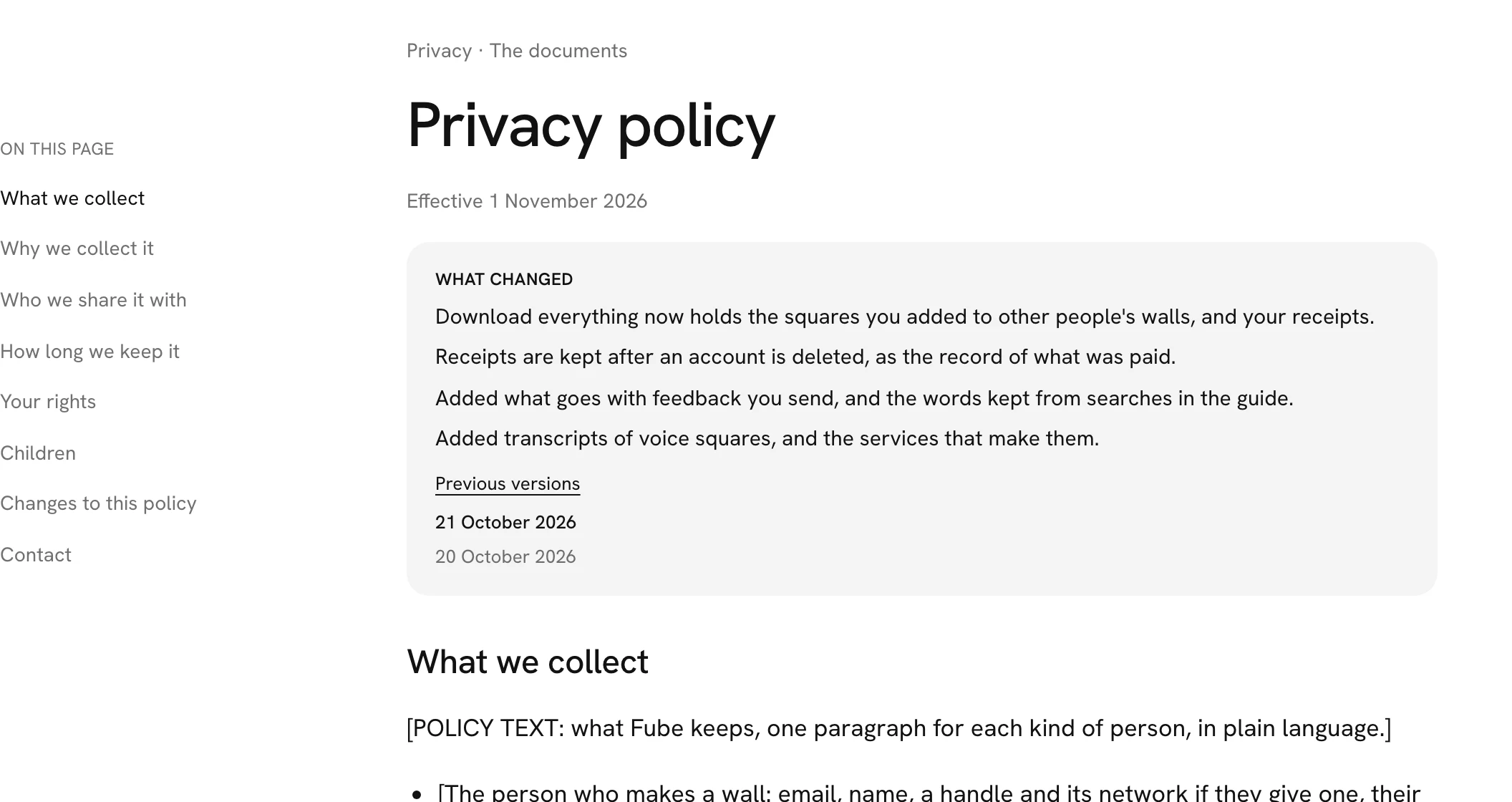
Signing in and making a wall link to the terms, and fube.app/terms opens them.
Smaller changes
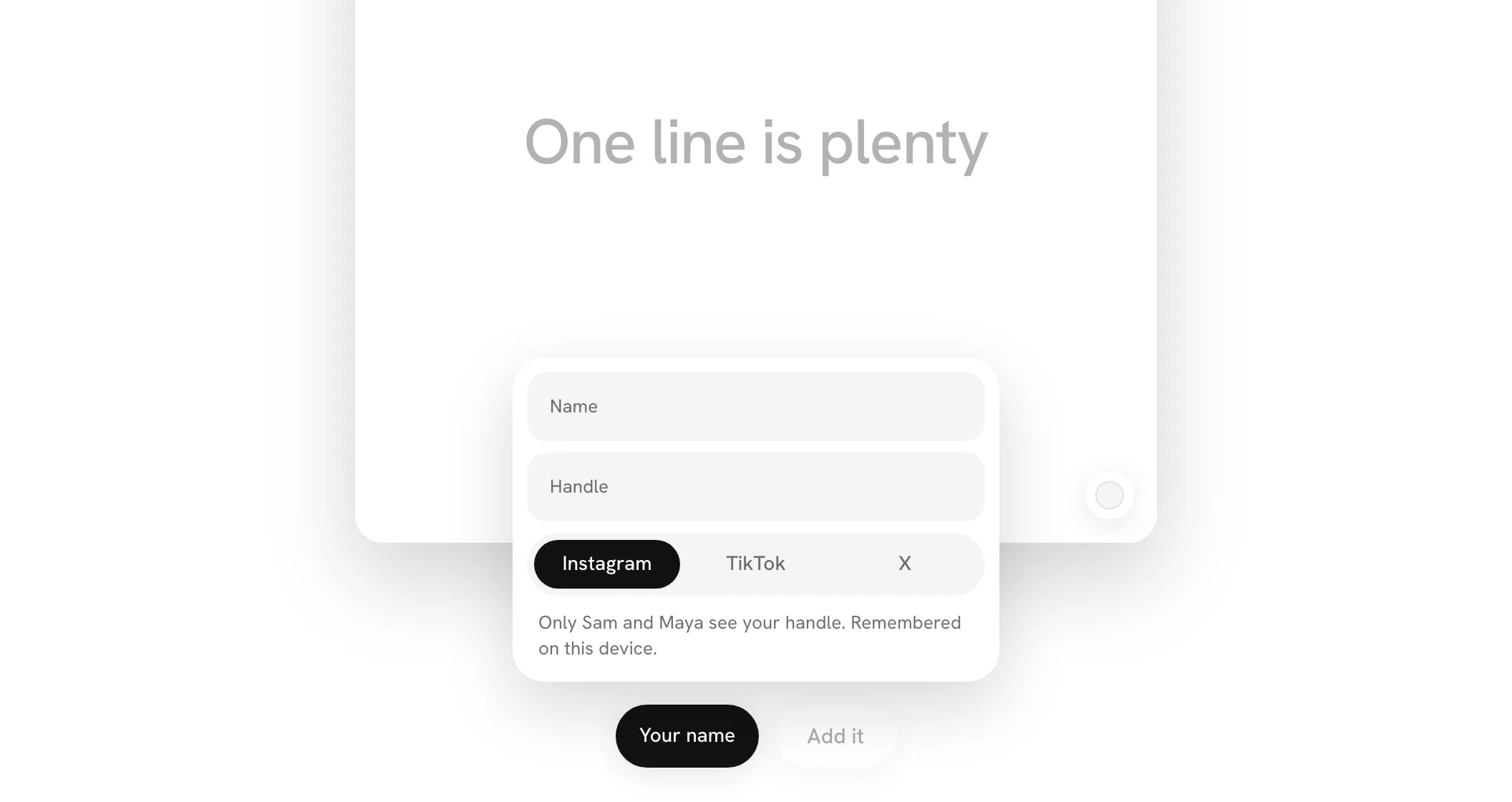
Who sees your handle. When you add your square, the card that asks for your name and handle names everyone who will see your handle: the person the wall is for and the person who made it. Before, it named only the first. On a wall that everyone opens together, only the person who made it sees your handle; before, whoever opened it first could see every handle on it.
Deleting your account stops your plan. When you delete your account, a paid plan stops renewing that moment, so nothing more is charged while the account waits its seven days to go. Sign in within the seven days and you keep your account: your plan runs to the end of what you paid for, and you can start it again in Billing. Your receipts are kept after the account goes, each with its PDF, as the record of what was paid, but no longer tied to any account, so download them from Billing first if you want your own copies.