A wall with weight and an end, more the closer you look, drawings that draw again, photos as prints, the year on a square, and voices you hear as you pass
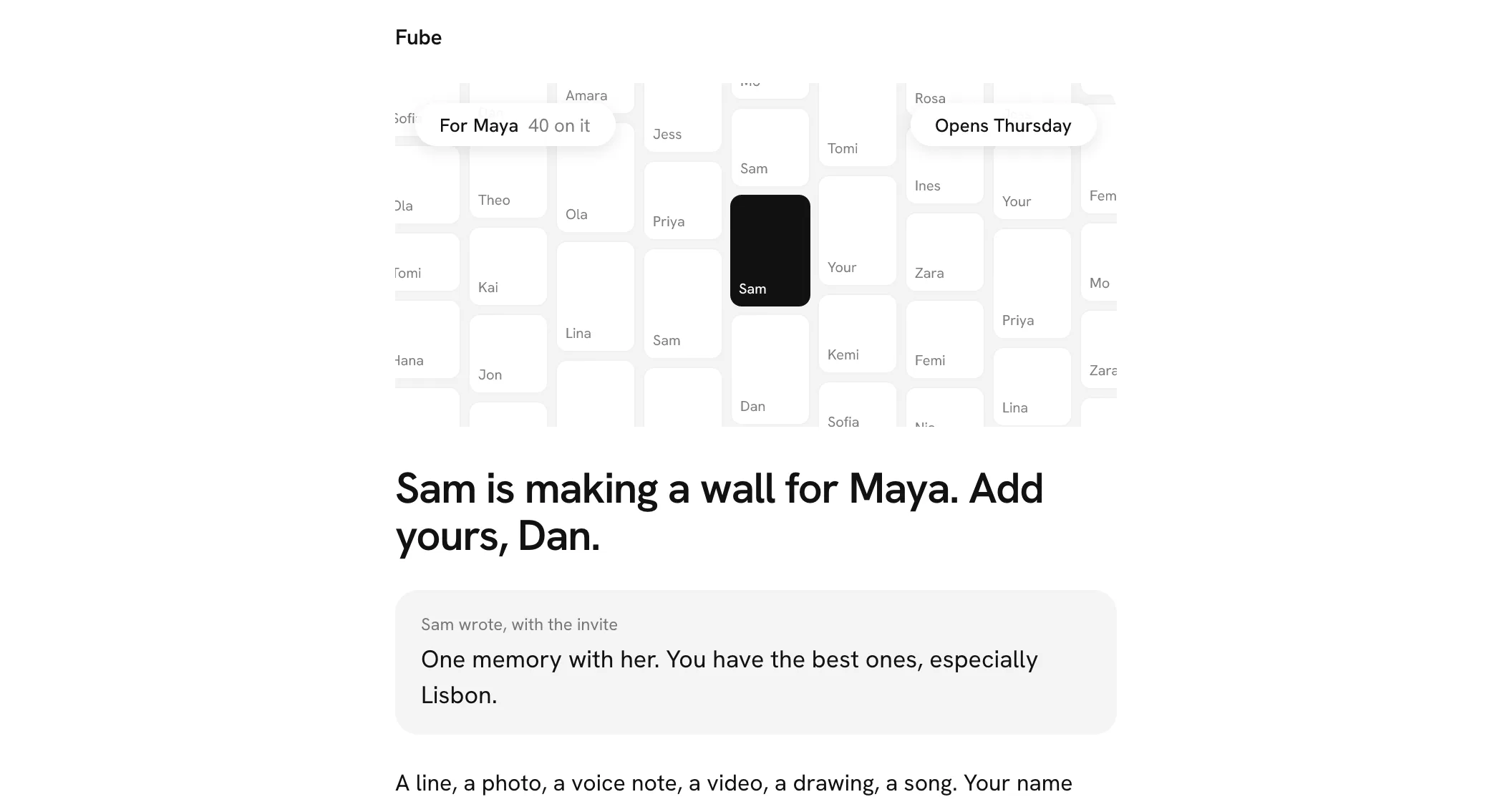
Walls now have weight: a flick carries on and slows to a stop, photos trail a moment behind the words as you drag, the wall dips under your finger where you press it, and it ends where its squares end, with a little give. Zoom out and every square shows just a hint of itself; zoom in and you get the rest. Open a drawing and it draws itself again, the way it was made, and a voice note's wave moves as it plays. A small note names the people whose squares you haven't opened yet, a video and a drawing wait half in view at the edges of a new wall, and the reveal ends on a quiet card that says everyone is here. Short lines are set big and long ones small, photos sit in a white border like prints, and every wall takes reactions once it has opened. A square can now say what year it's from: rest on one and every square from that year shows it. And if you'd like, the wall can now make a few quiet sounds, like paper and fingertips, as you move around it, and voice notes murmur as you pass them, clearer the closer you come.
A wall with weight
Moving a wall now feels like moving something real. Flick it and it carries on after you let go, slowing to a stop. Two fingers on a trackpad, or a mouse wheel, glide it rather than jump it, and zooming happens around your pointer.
Heavier things move later. As you drag, the squares move in three weights. Lines of words and voice notes are light, like paper, and stay with your finger. Photos and drawings trail a little behind, like prints. Videos and tall photos are heaviest: they hold still until the wall is really moving, then trail the furthest. When the wall stops, they settle home in that order, with no bounce.
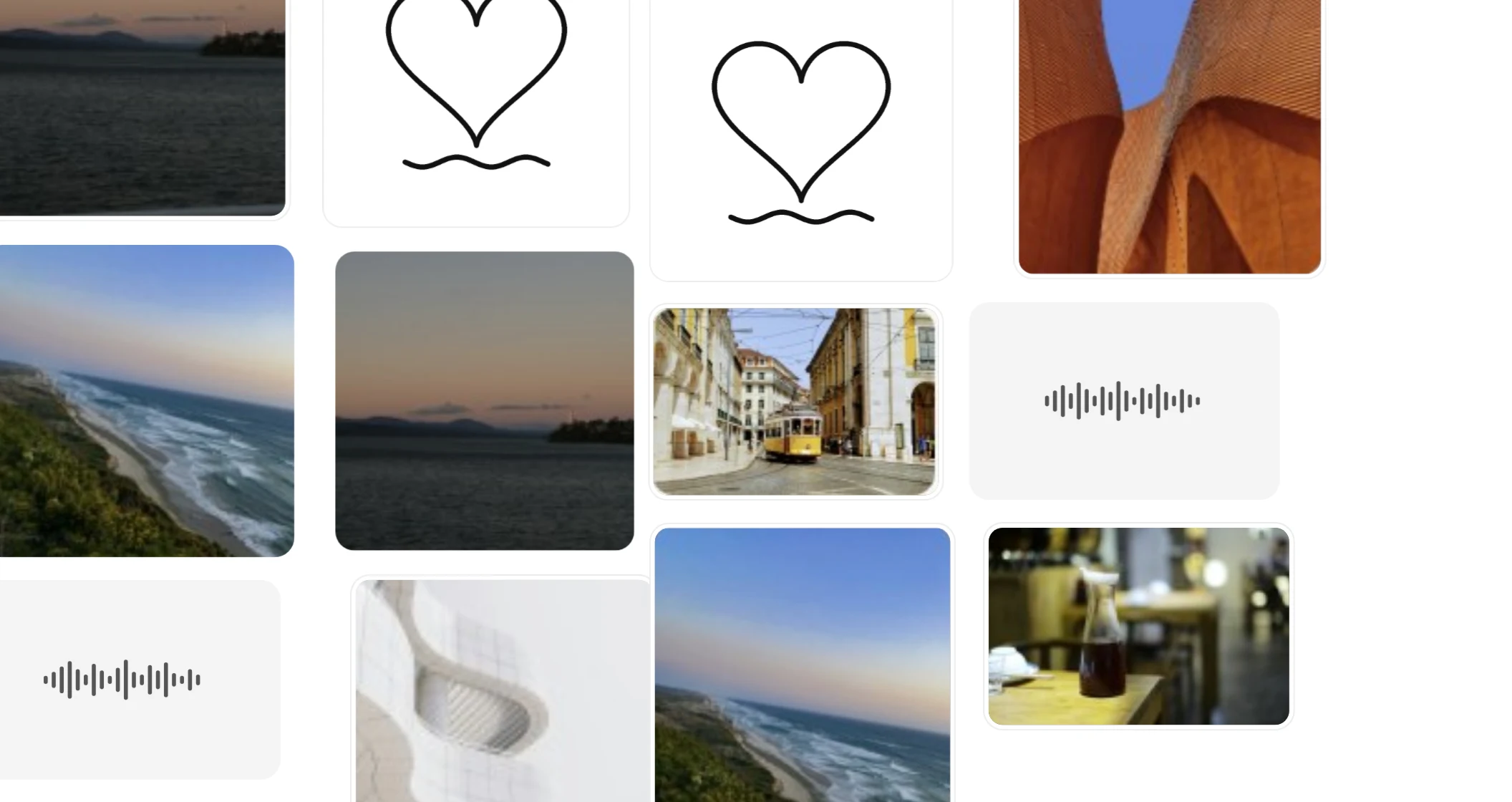
It dips where you press. Press the wall to drag it and it dips under your finger, like a sheet of paper pressed with a fingertip: the squares right under it sink a little and draw in toward it, the ones around them less, and the rest of the wall not at all. The lighter squares dip first and the heavier ones a beat later. Let go and it smooths back out.
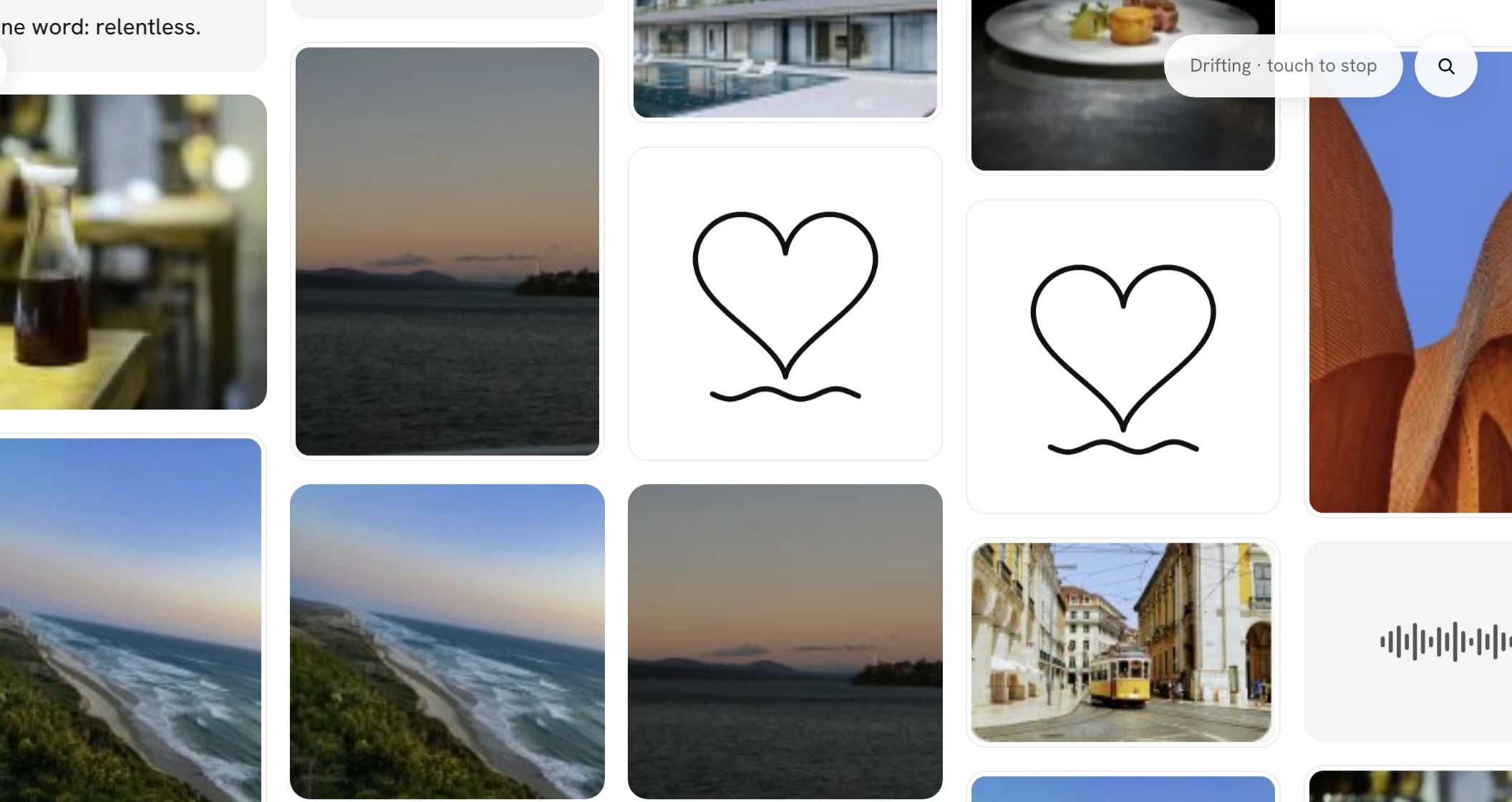
Left alone, it drifts. If nobody touches a wall for 20 seconds and nothing is open, it starts to drift slowly on its own, turning gently now and then and never running off the edge. A small note at the top says Drifting · touch to stop, and any touch, click, scroll or key does.
If your device is set to reduce motion, the squares don't trail, the wall doesn't dip or drift, and a flick still carries as it always has.
The wall has an end
A wall now stops where its squares stop. Past the last square there's a short strip of empty ground, and then the wall pushes back: keep dragging and it moves at about a third of the pace of your finger, and when you let go it springs back into place. Nothing is drawn there, no line, no shadow and no message. The give is how you know you've reached the end.
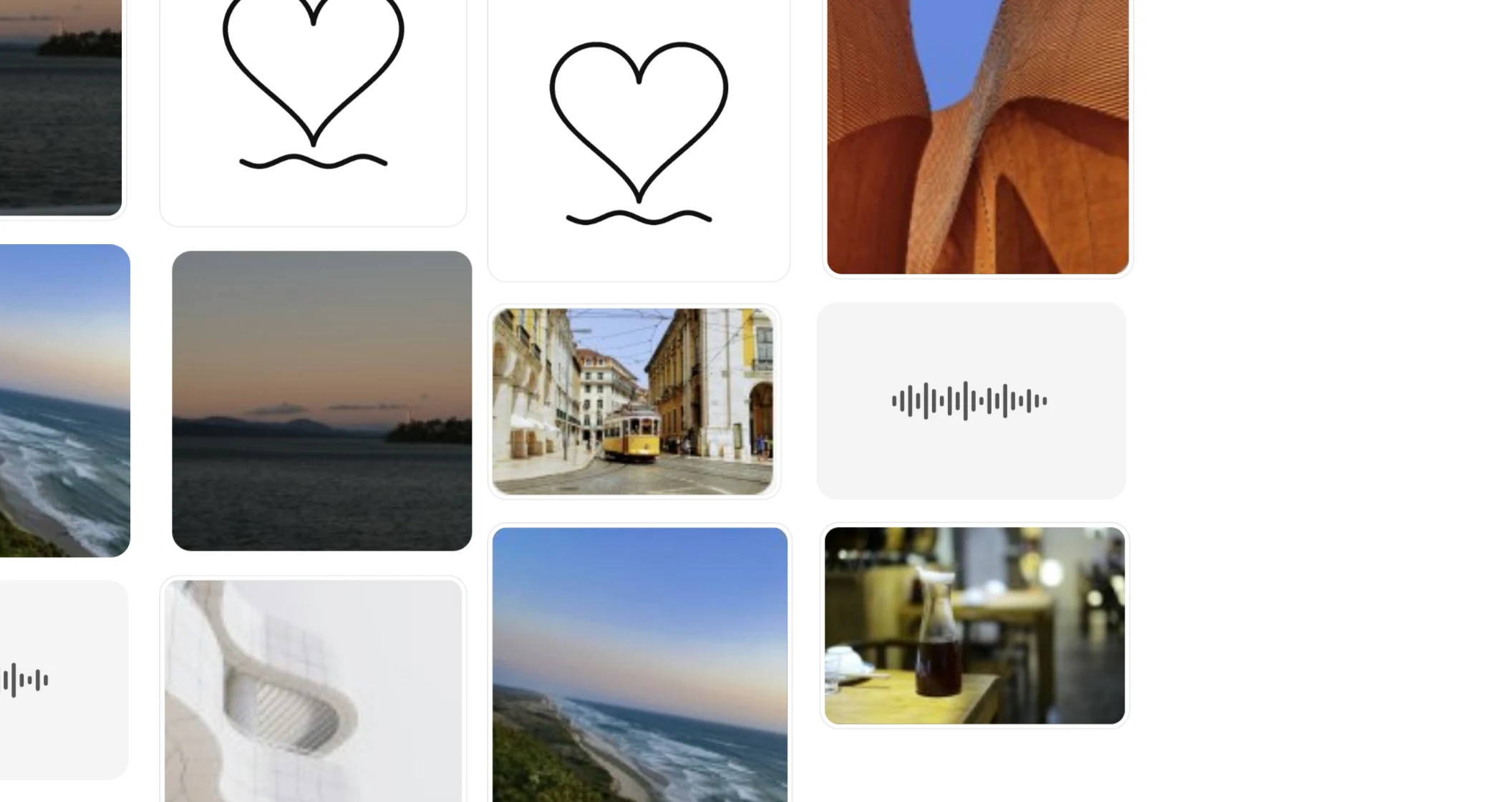
Flicks and scrolls too. Flick a wall toward its end and it slows hard as it gets there, then comes back. A trackpad or a mouse wheel goes only a little past and settles back once you stop. Wherever you leave a wall, there are squares on screen, so you can't lose it.
A wall smaller than your screen sits in the middle and gives the same way if you drag it. When new squares arrive at the edge, the wall's end moves out to take them in.
More the closer you look
What a square shows now depends on how close you are. Zoom out and the wall becomes a field of hints: a line of words shows only its first few words and a mark that there's more, and no names pop up as you pass. Photos, voice notes and drawings sit still.
Zoom in and you get the rest. A voice note's wave starts to move, and under it are its first words, when they've been written out, and how long it is. A drawing draws itself again, stroke by stroke, the way it was made. A photo that came with a line shows it on a small card across its bottom, and a line too long for its square shows all of it, set smaller to fit.
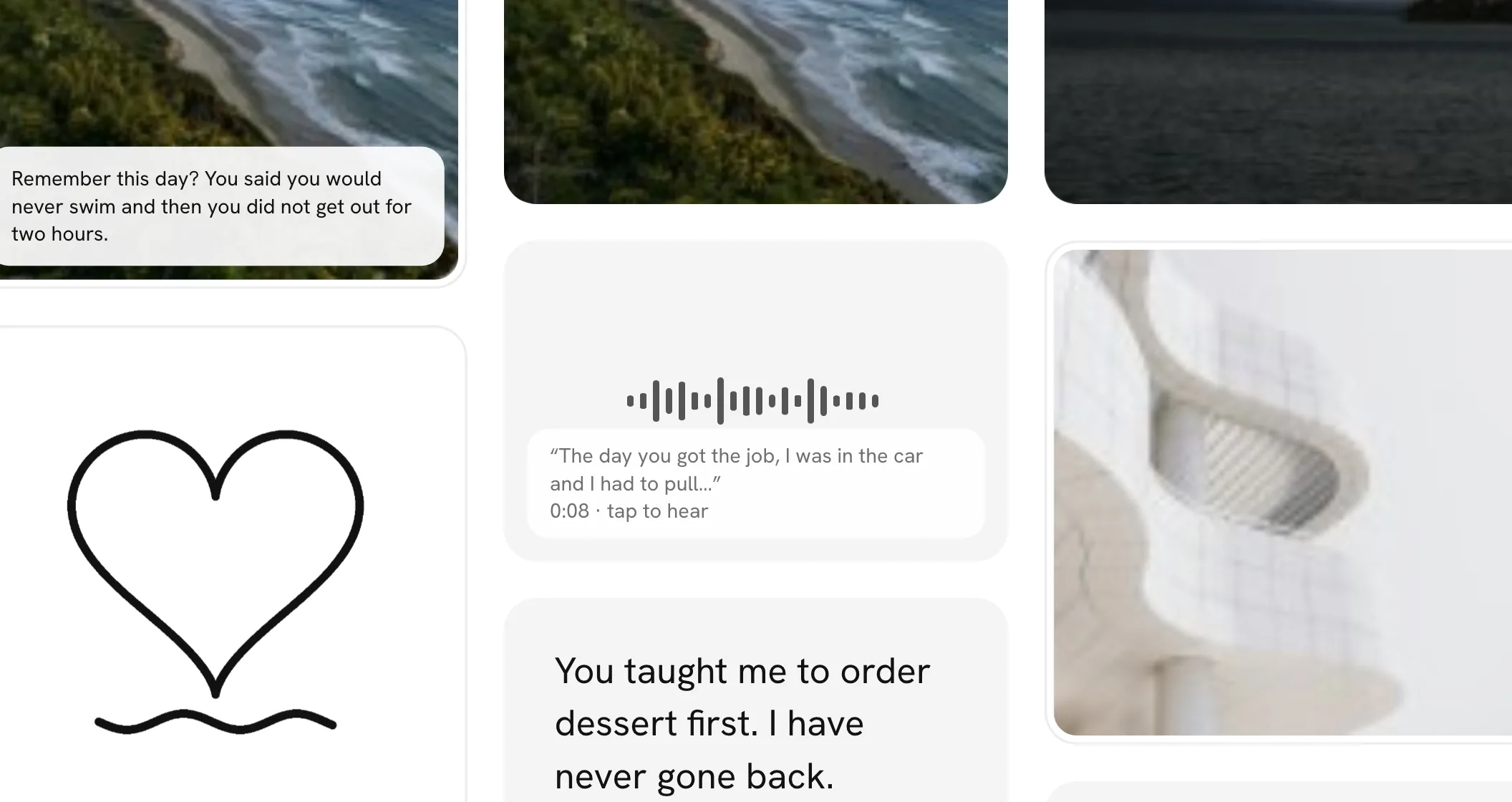
Each change fades in as you zoom past it, and it won't flicker if you stop right at the point where it happens. Every wall opens in between, where drawings now rest as finished pictures until you come closer. If your device is set to reduce motion, the change happens at once and nothing moves.
Drawings that draw again
Open a drawing and it draws itself again, stroke by stroke, in the order and at the pace it was drawn, sped up so it never takes more than a few seconds. A small dot leads each line like the tip of a pen, the finished drawing shows faintly underneath, and a grey Drawing it again sits in the corner. When the last line is in, the drawing settles and the note goes. Seeing it made reminds you someone sat down and made it for you.
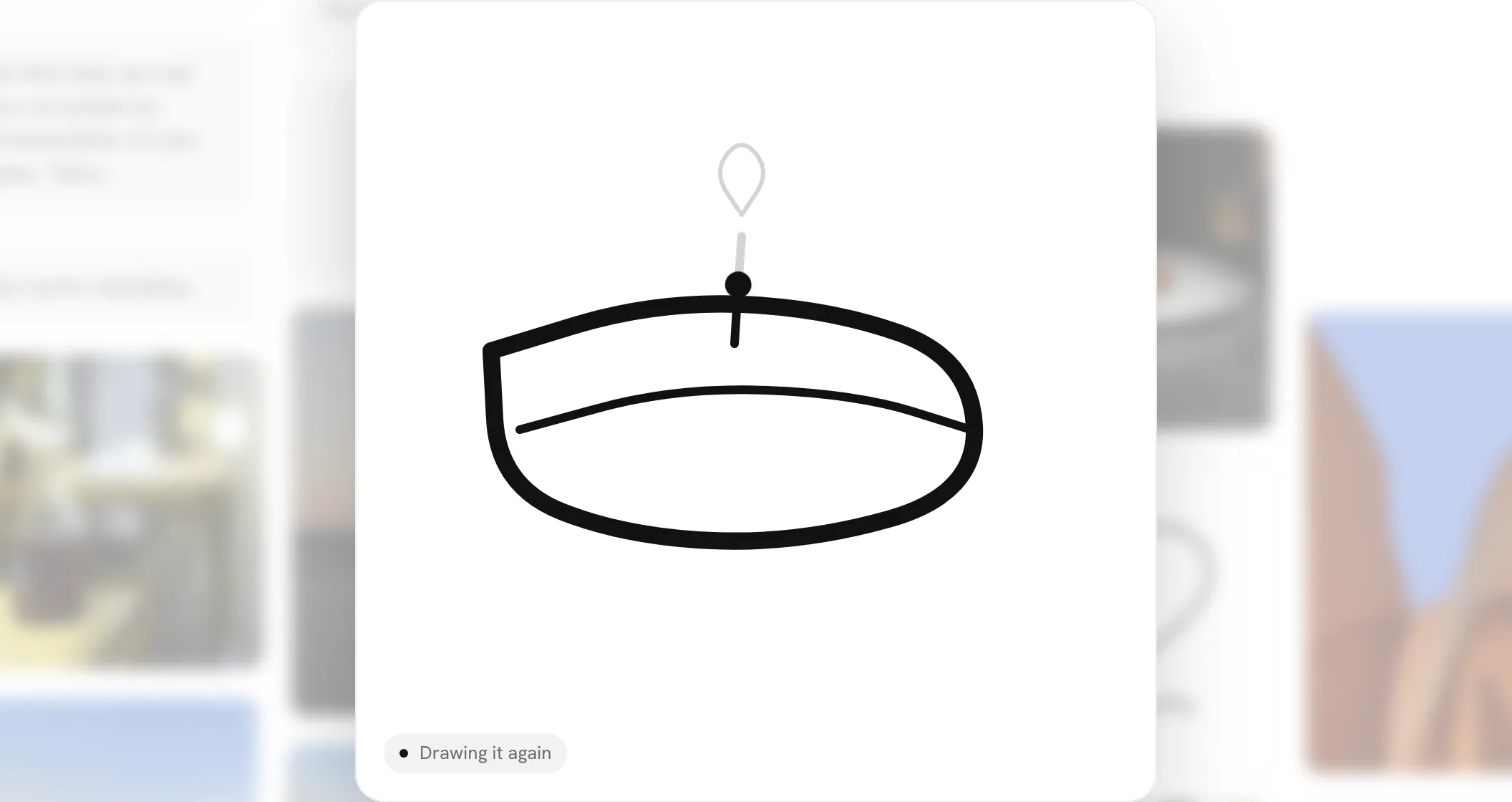
It plays once each time you open it. Tap the square to skip straight to the finished drawing.
Voice notes move as they play. An opened voice note's wave now rises and falls with the voice as you listen, and stands still when you pause it.
There's never a timer, and nothing says how long anything took. If your device is set to reduce motion, the drawing opens finished and the wave stays still.
Who you haven't opened yet
Once you've opened a few squares on a wall, a small note over the Unseen and All pill says who is left: how many you've seen, then the names of the three nearest people whose squares you haven't opened yet. Names are easier to act on than a number, so you're less likely to skim past someone.
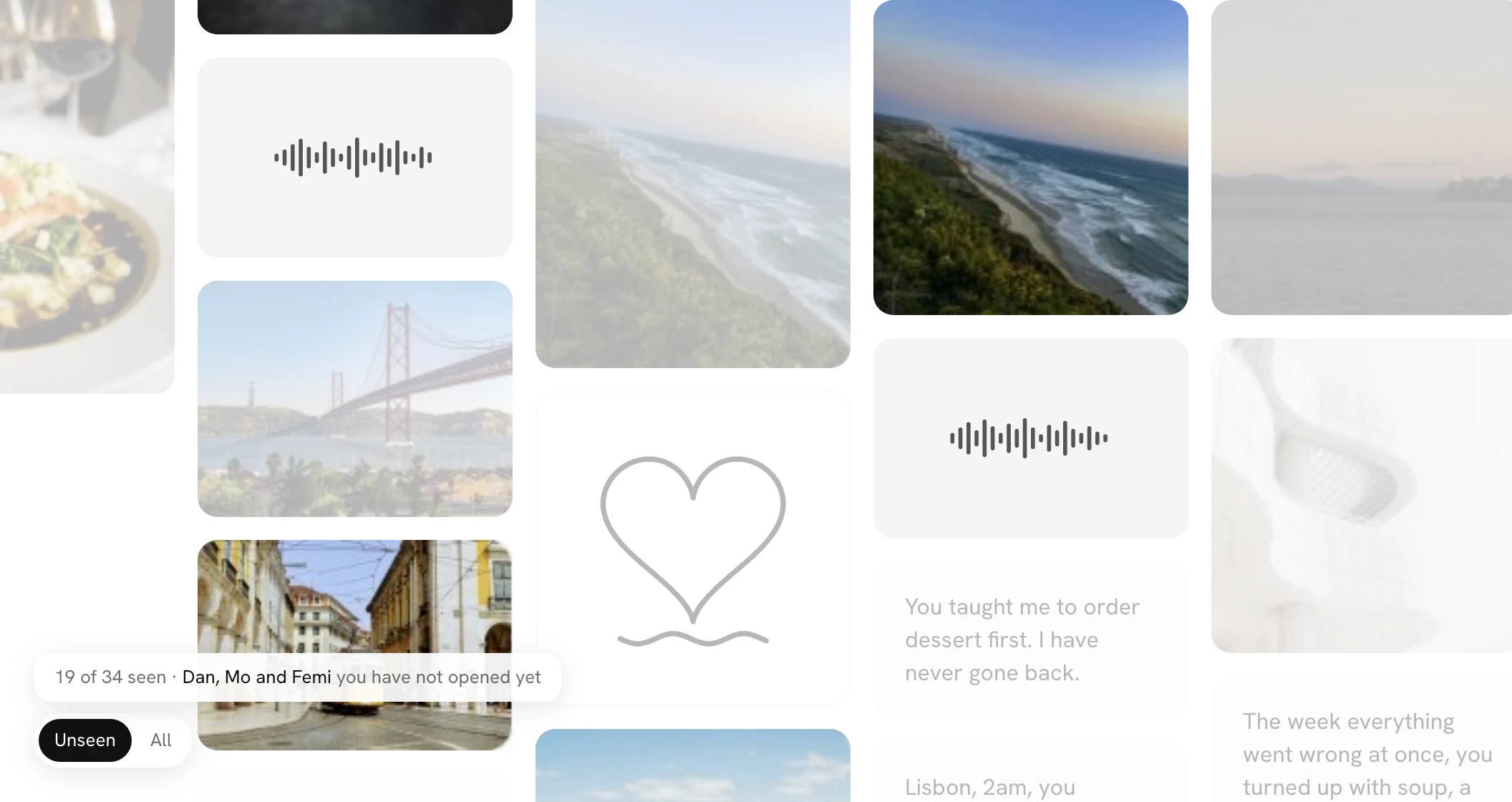
It follows you round the wall. The names are always the people nearest the middle of your screen. Drag the wall and they change to whoever is close by now. Open one of them and, when you close it, the next nearest takes their place. On a phone it names two.
When you've opened every square, it says "Everyone, seen." for a moment and then goes. It never turns red, never sends you an email and never puts a dot anywhere. It doesn't show on walls with fewer than six squares, or on the big screen.
Something at the edges
When a wall opens, its first video sits at the right-hand edge of the screen, half in view, and its first drawing at the left-hand edge. Seeing something cut off makes you want to look, so there's a reason to drag the wall right away.
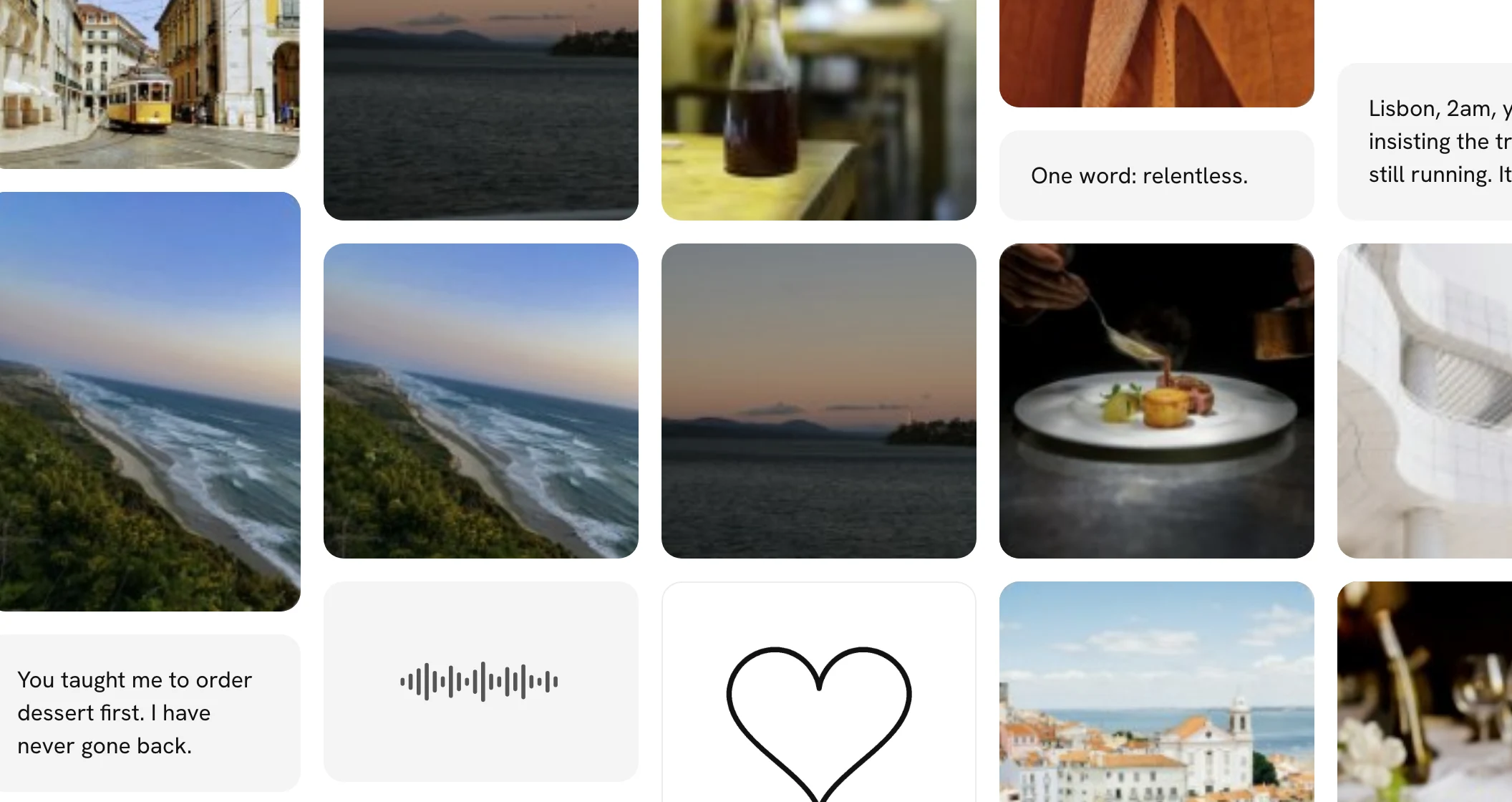
How it works. This happens on new walls, for the first video and the first drawing that arrive among the first twelve squares. On a phone they sit at the phone's own edges. Nothing is labelled and nothing moves once it's placed. Every square after them fills in from the middle as before.
A quiet end to the reveal
When the person a wall is for closes the last square of the reveal, nothing happens for a moment. There are no pills and no buttons, and the wall stays still, so the room goes quiet. Then the wall fades back a little and a card comes up in the middle: "That's everyone.", with how many people are on the wall underneath.
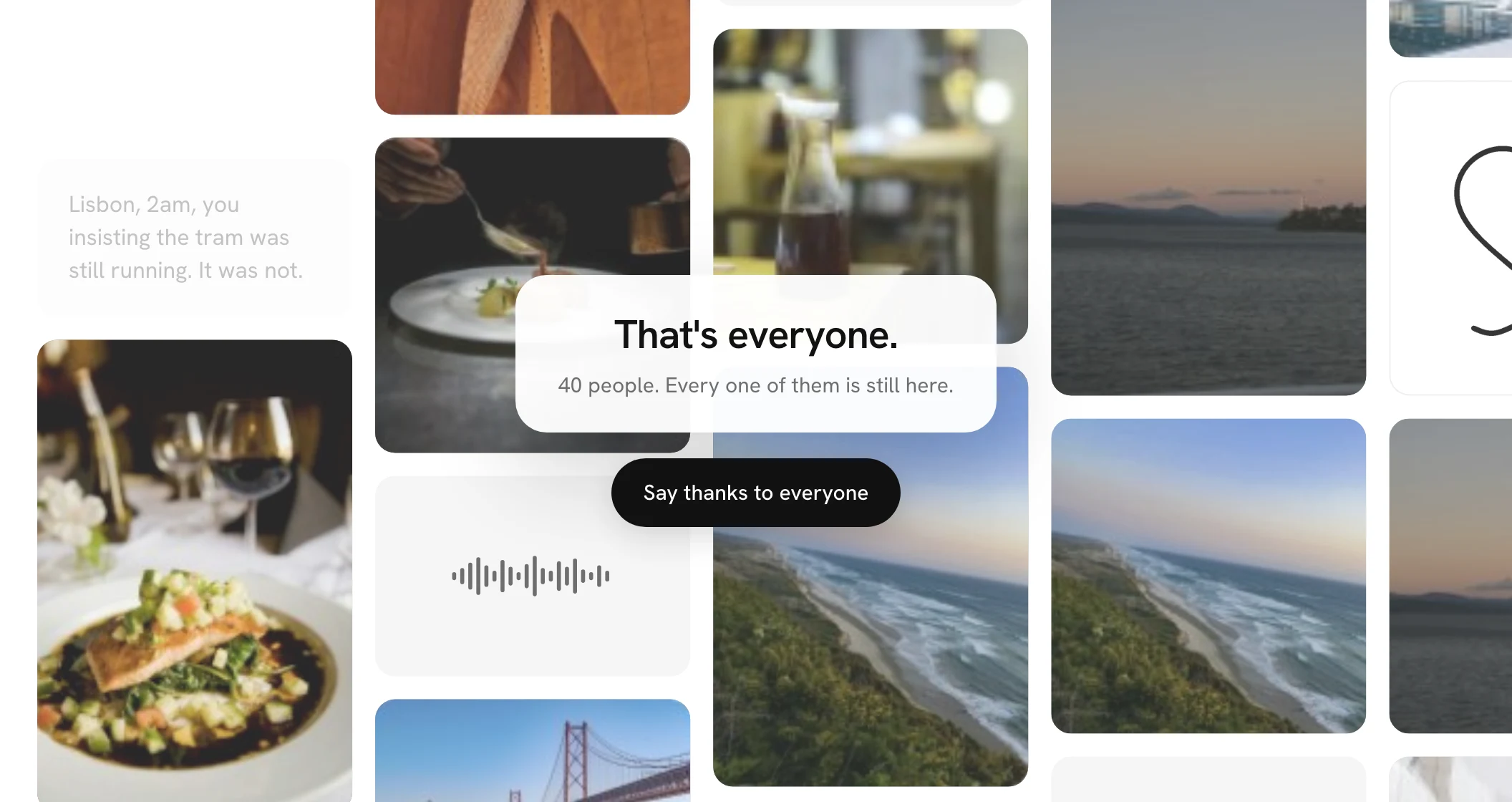
One thing to do next. On the device that opened the wall, the card's pill is Say thanks to everyone, until a thank-you is on the wall. It used to sit under the last square. Anyone else watching the reveal gets Replay. Tap or press anywhere else and the card goes, and the wall is yours to wander.
Short lines big, long ones small
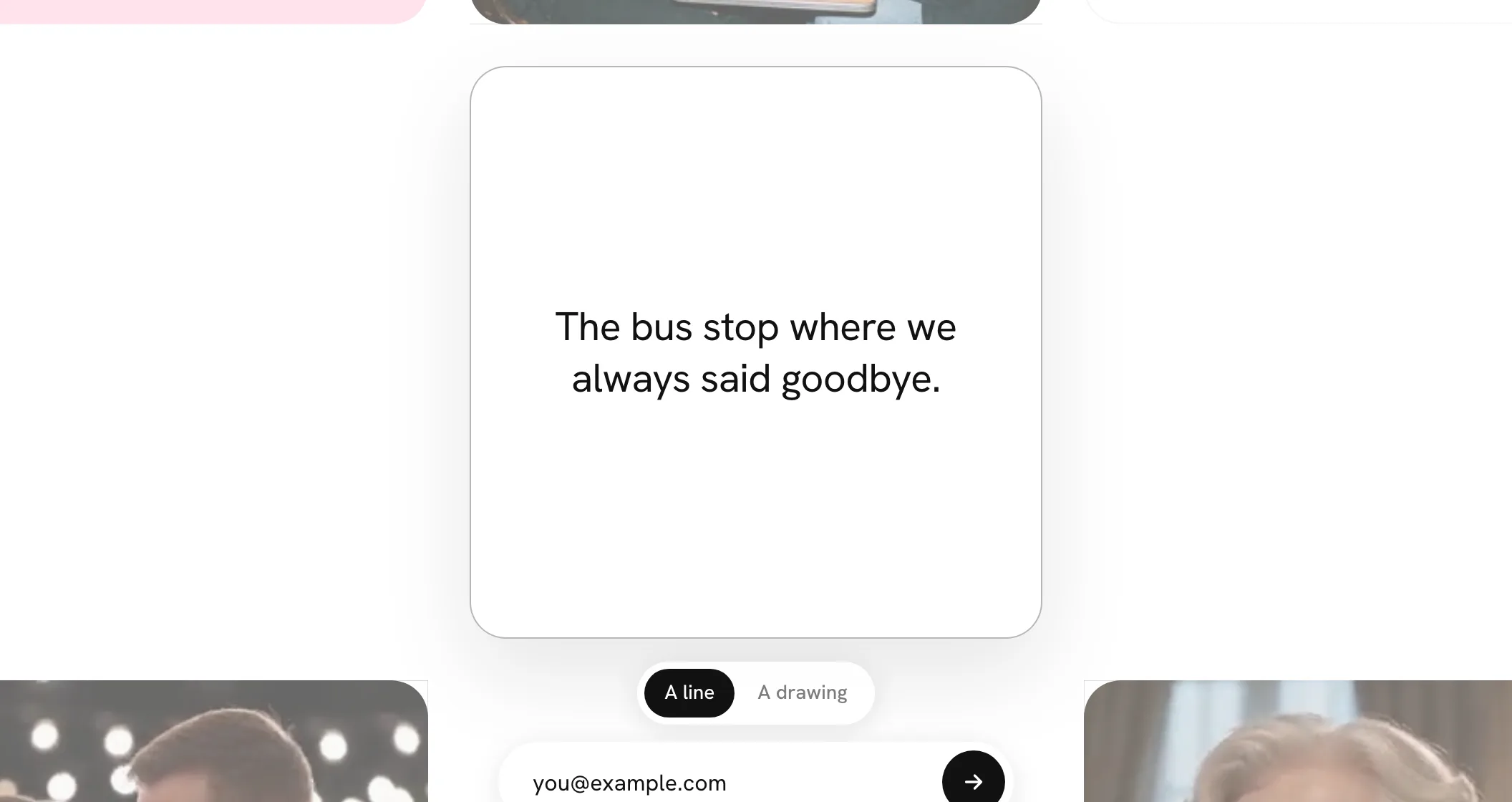
A line of words on a wall now takes its size from how much it says. Under 40 characters it's set big and bold, like a shout. Up to 90 it's a little smaller, and anything longer is set small and quiet, like a letter, so it stays easy to read. You don't choose it; it just fits what you wrote.
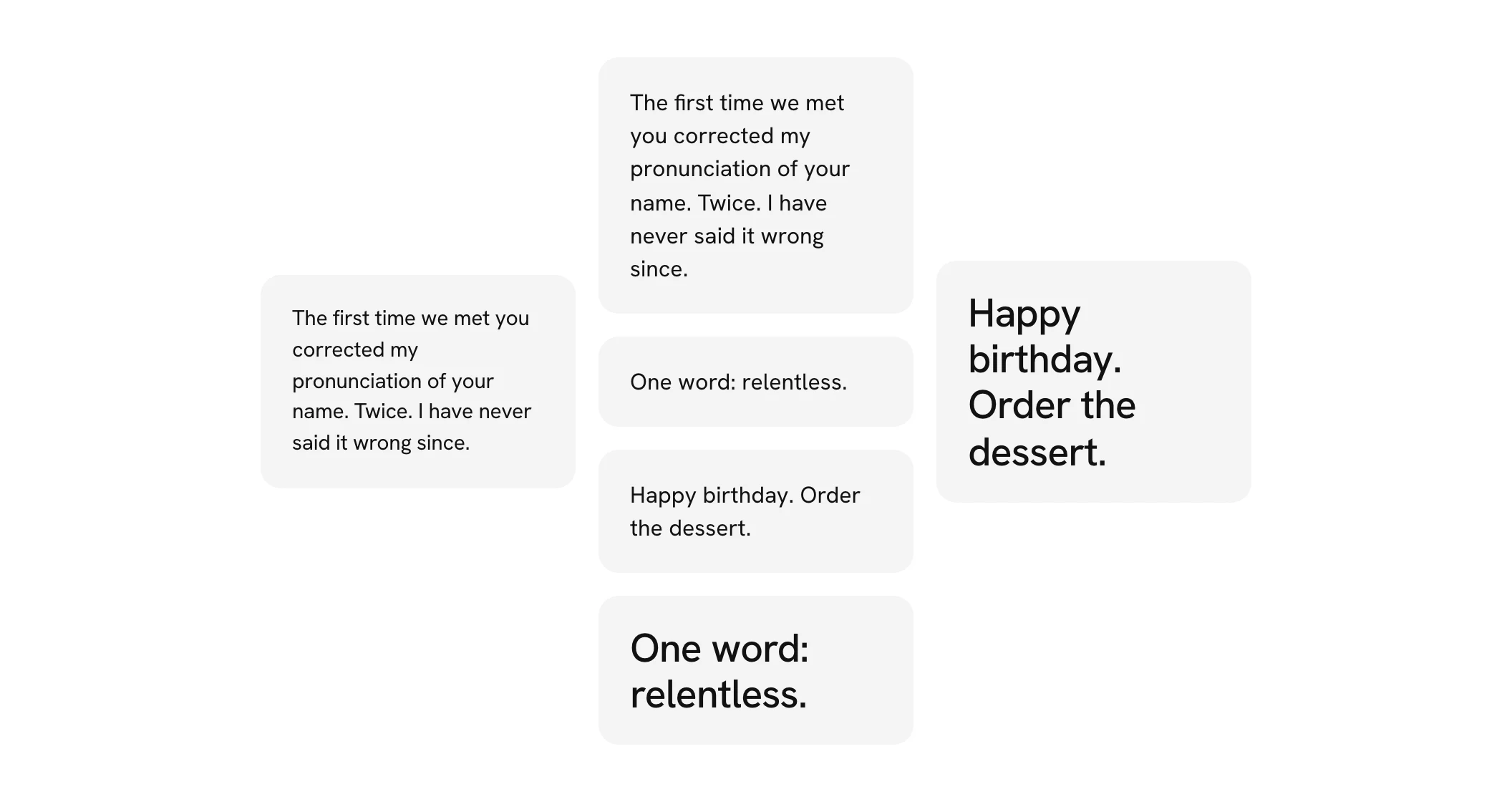
You see the size while you write. As your line passes 40 and then 90 characters, the words in the square fade to their new size, so what you see is how it will sit on the wall.
How it works. The size is set when you add a line and never changes after, so nothing on a wall moves. Lines that were already on a wall keep the size they had. If one word in a short line is too wide for its square, the line takes the next size down so the word isn't broken. The printed book and the share pictures use the same sizes.
Photos like prints
Photos and videos on a wall now sit in a thin white border with a fine edge, the picture rounded inside it, like a print you could pick up. Lines of words, voice notes, drawings and songs stay as they were, because they aren't photos.
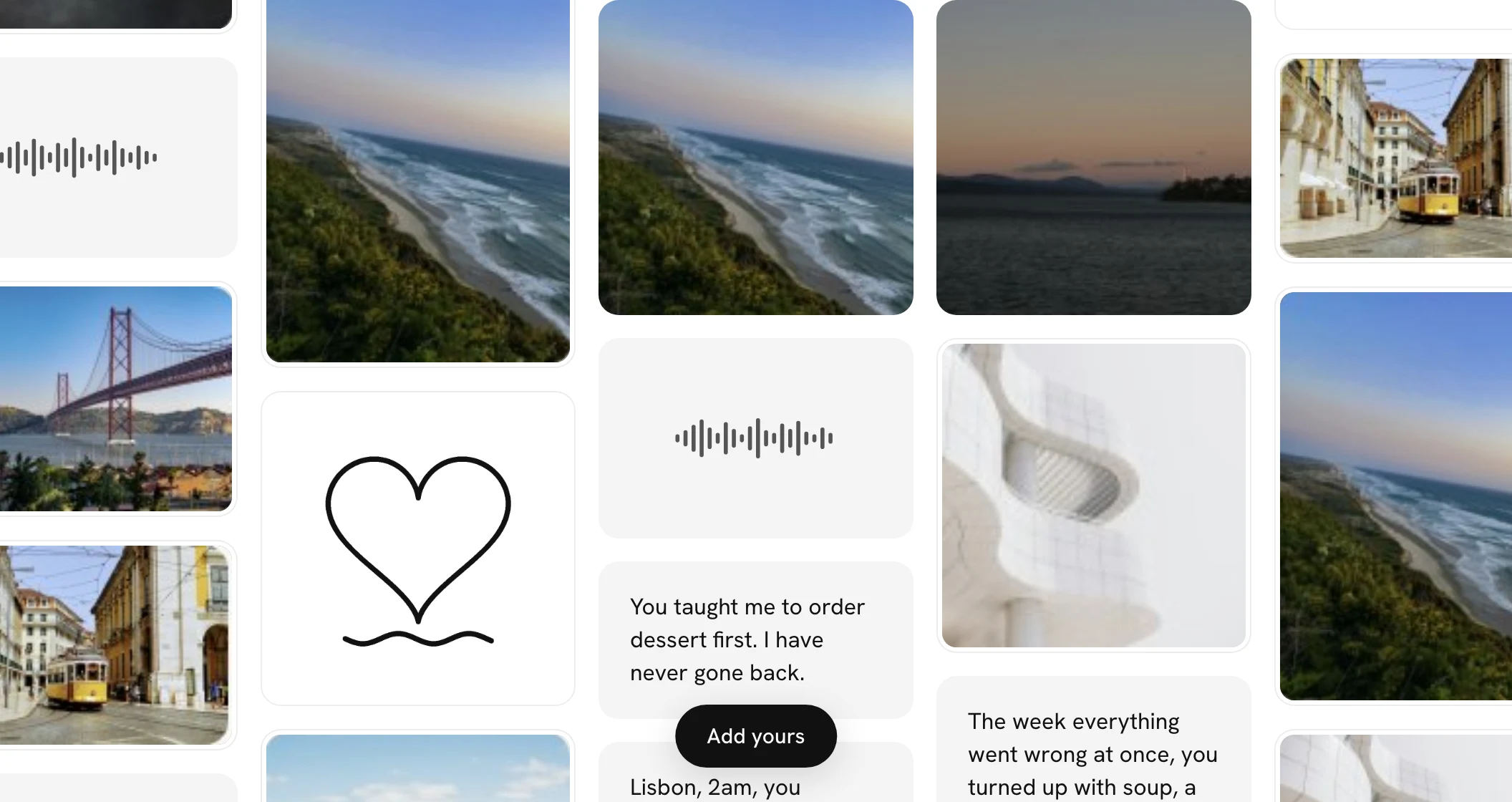
A little tilt. With a mouse or a trackpad, rest on any square and, as well as lifting, it tips very slightly toward your pointer, like a card in your hand. It doesn't happen on a phone, or if your device is set to reduce motion.
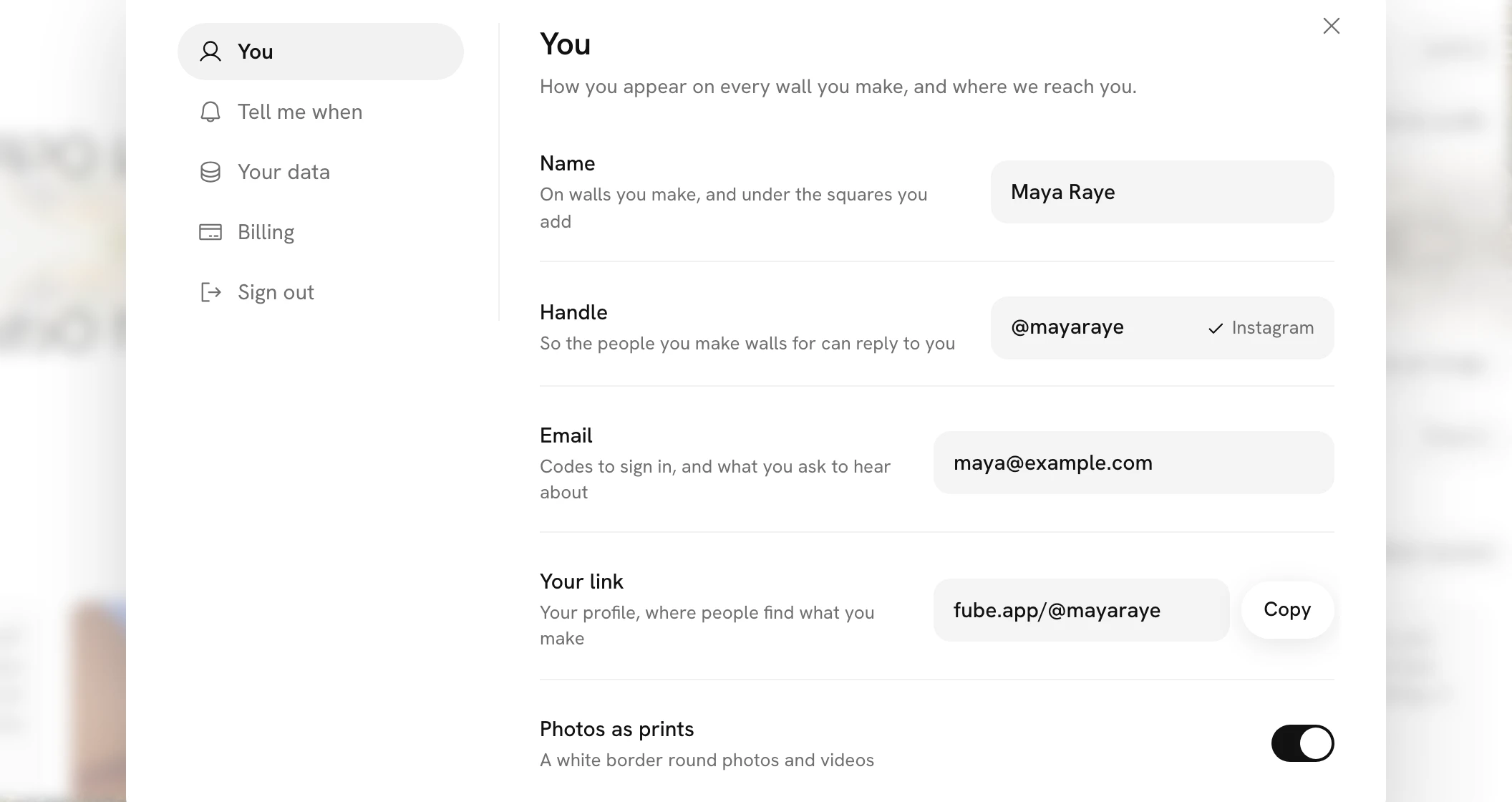
Rather have them edge to edge? In Settings, under You, switch off Photos as prints. Photos and videos fill their squares again on every wall you see while signed in. The tilt stays either way.
The year on a square
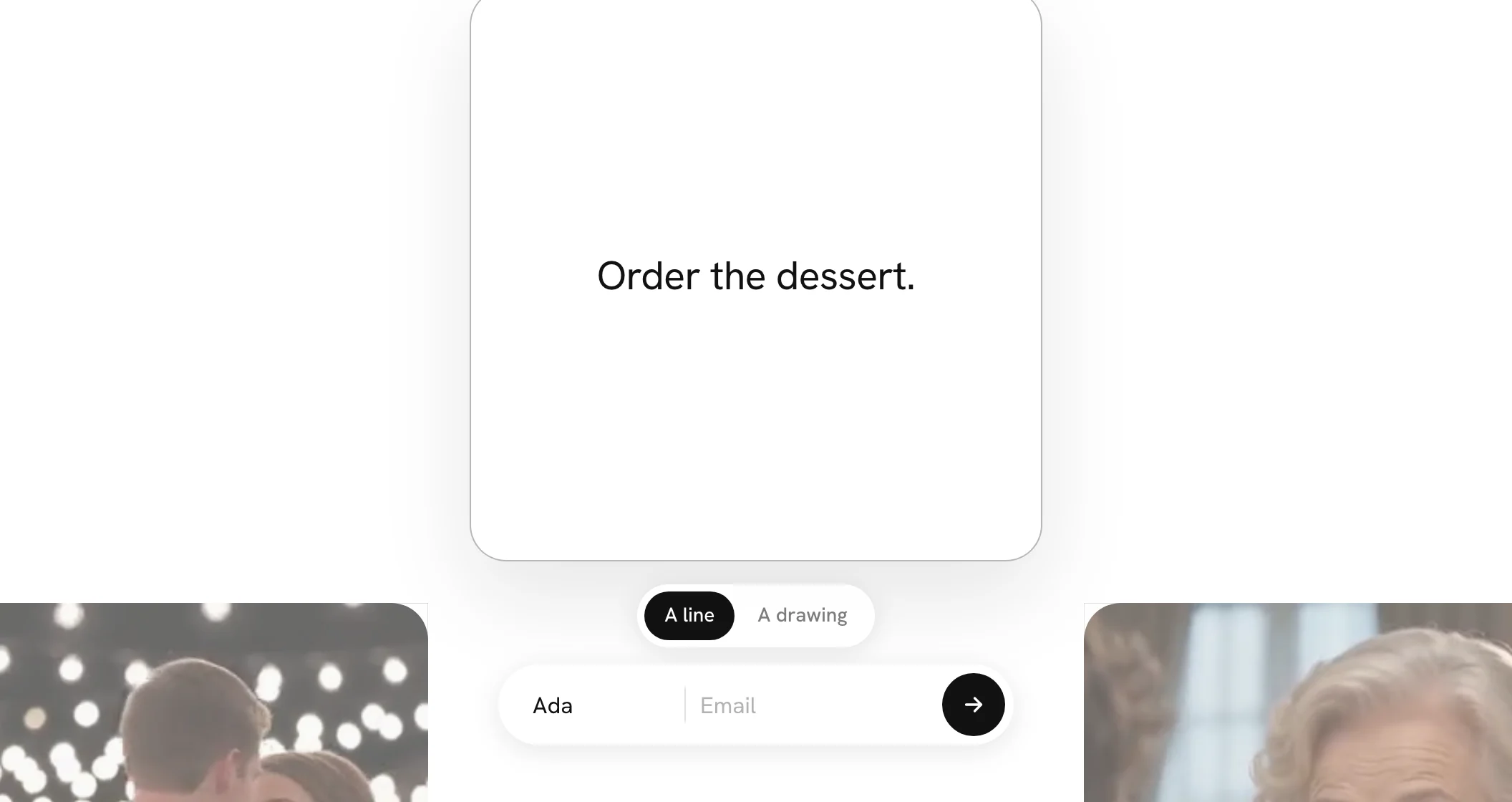
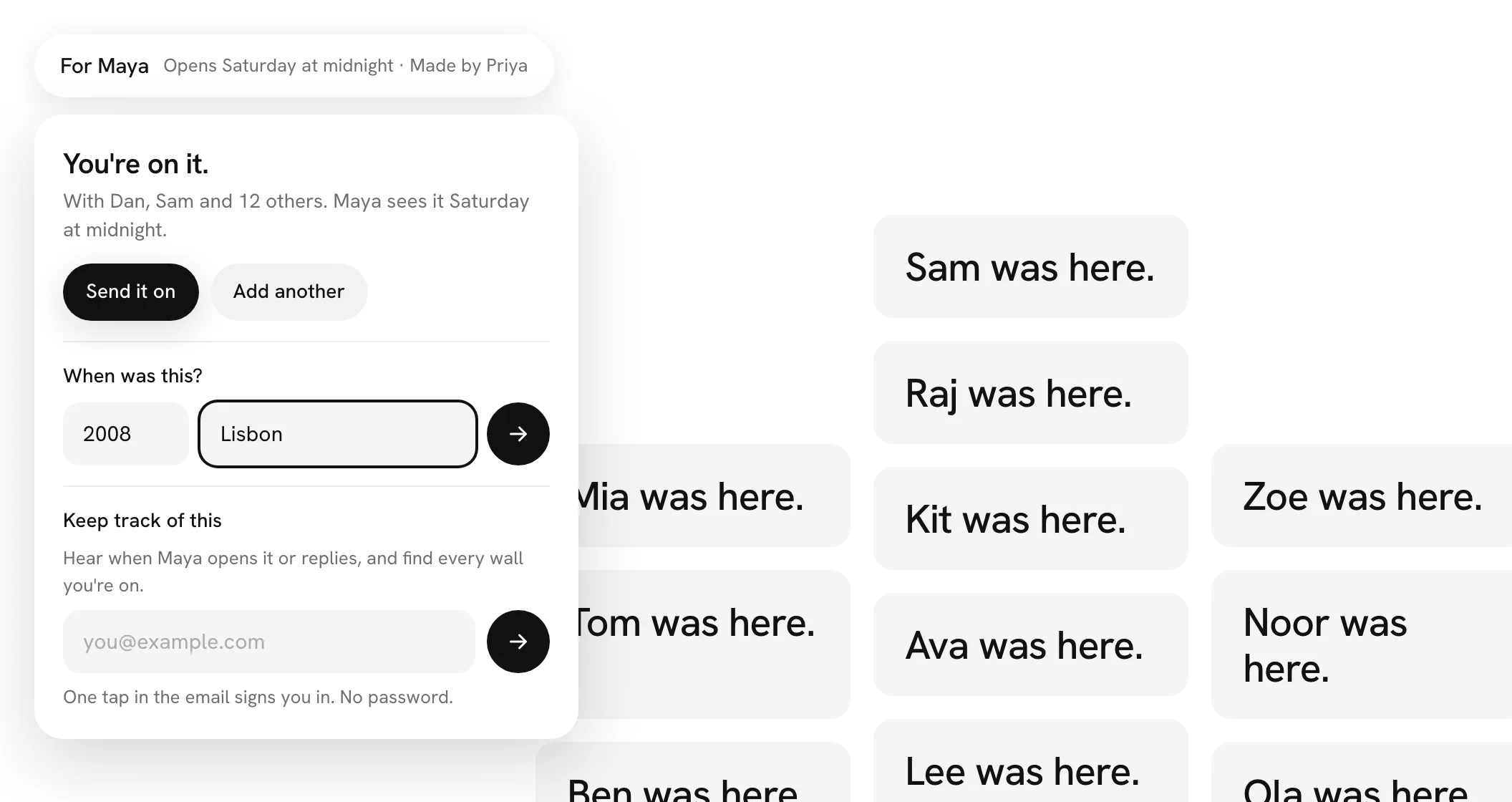
A square can now say when it's from. Just after yours lands on a wall, you're asked once, "When was this?", with a field for the year and one for the place. A photo fills them in itself when it knows: the year it was taken, and the nearest town to where. Answer with either or both and press the arrow, or simply carry on and it stays undated.
Rest on a square to see its year. On a computer, rest the pointer on a dated square and a small black year shows in its top corner, and every other square on the wall from that same year shows its year too. Move away and they go. It's an easy way to spot the squares from one summer, or one trip, without anything being sorted or moved.
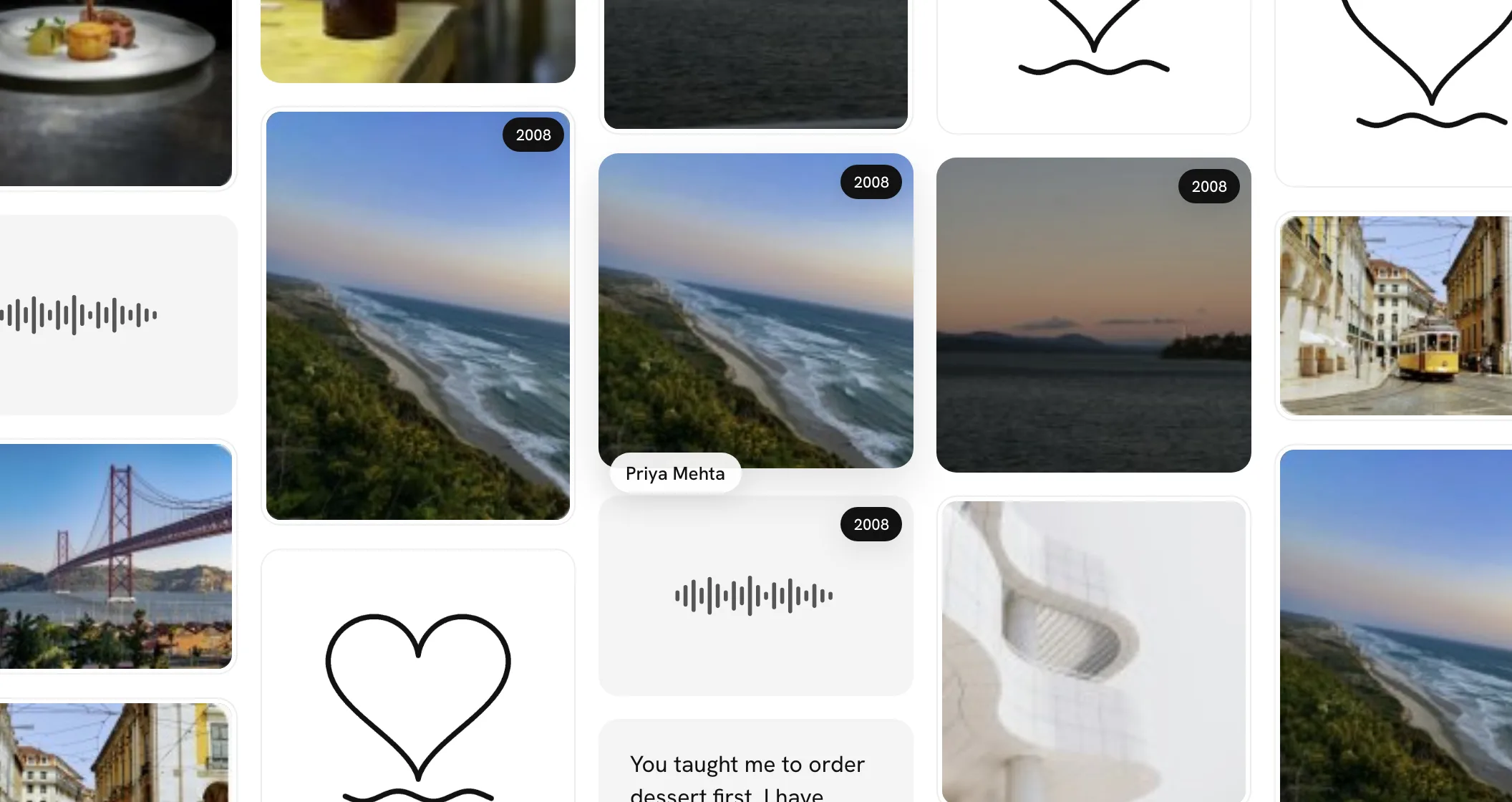
On a phone, open a dated square and the year and place sit under the name, as in 2008 · Lisbon. When you make your version of a wall and two or more of the squares you picked have a year, a By year pill puts them in the order of their years, and the printed book shows each square's year beside its name.
Sound, if you want it
A wall can now make a few quiet sounds, soft and close, like paper and fingertips rather than anything that beeps. They're off until you press Sound off at the bottom right of a wall, and the wall remembers your choice on that device. On a phone it's a small round button in the same corner.
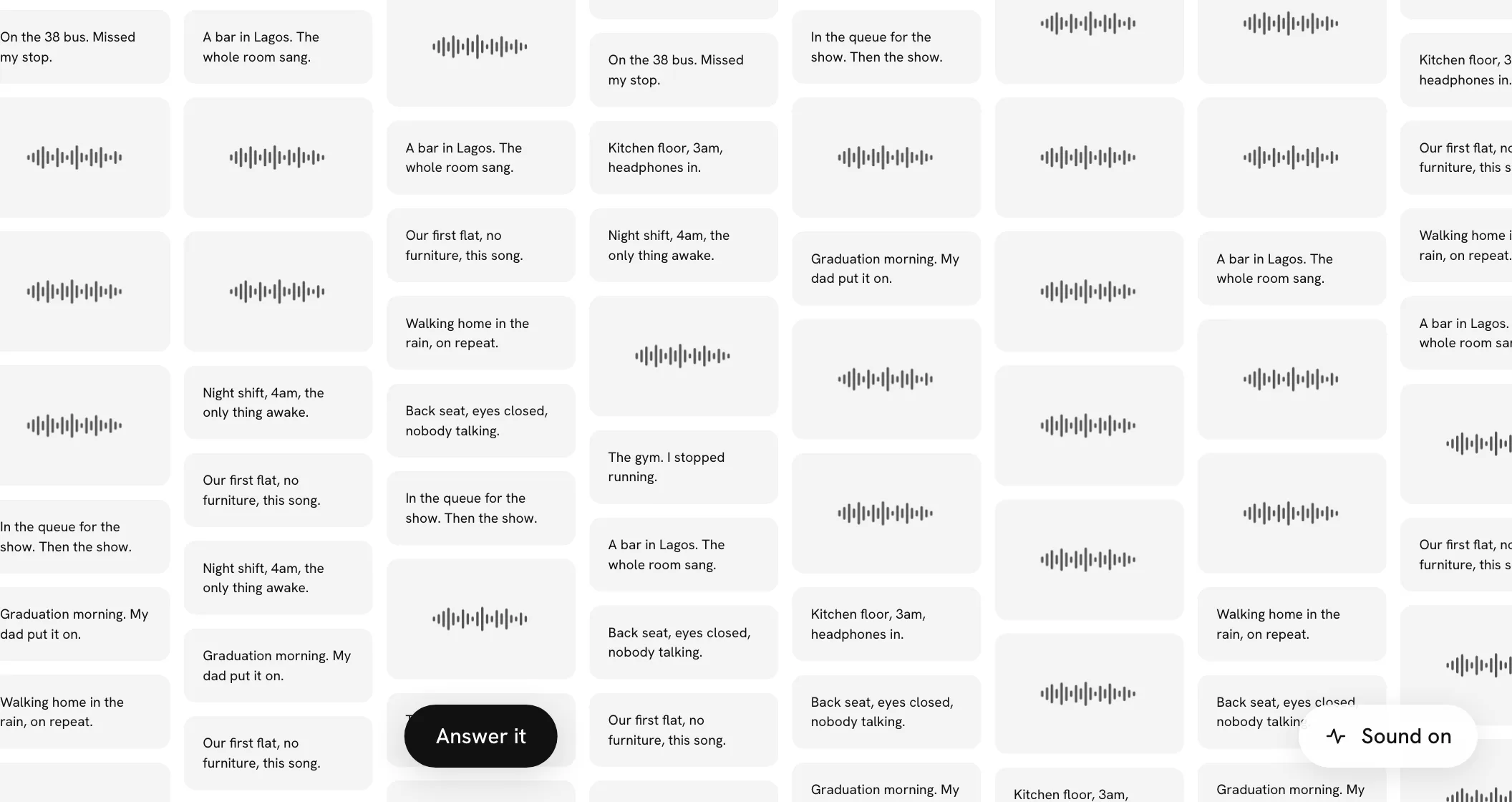
What you hear. Each square turning over at the reveal sounds like a sheet of paper, and so does a new square landing while you watch. Opening a square makes one small wooden tap, with a light buzz on phones that can. Dragging, flicking or zooming the wall brings a soft brushing that follows your hand: louder and brighter the faster you go, from the side the wall is moving to, and quiet a moment after it stops. Each sound comes from where its square is on the screen, and zooming in brings them closer, as if right by your ear.
And when it's quiet. Nothing plays until you've touched the page. The wall stays silent while a voice note, video or song is playing, when you close a square, and when it drifts on its own. Pills, typing, the countdown and the big screen never make a sound.
Voices as you pass
With sound on, voice notes on a wall that has opened can now be heard before you open them. Move toward one and it starts to murmur, quietly, from the beginning. The closer you come, the clearer it gets, and it fades as you move on. You'll hear two at most, the nearer one louder, like walking through a room where people are talking. Open one and it plays in full on its own, and the rest go quiet.
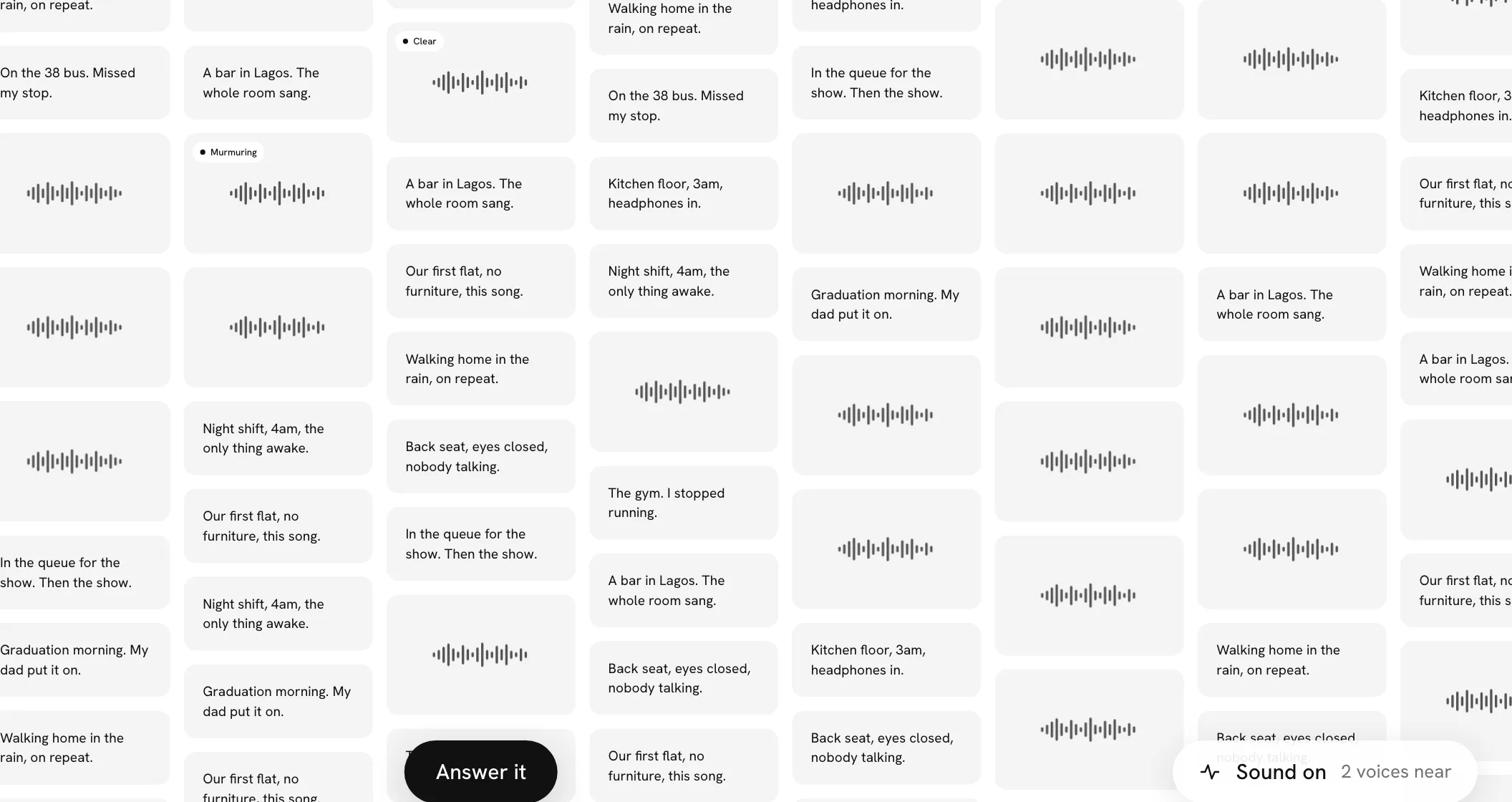
While you can hear a voice note, it wears a small pill at its top left: Murmuring while it's soft, Clear once you're close. Sound on at the bottom right counts how many you can hear, and on a phone the round button widens to say it.
Each note plays once as you pass. Stay by it and it finishes and stays quiet; move away and come back, and it starts again from the beginning. Nothing murmurs before a wall has opened, while a square is open or you're adding yours, or on the big screen.
Smaller changes
Reactions on every wall. Once a wall for someone has opened, anyone with its link can react to a square with one of the four emoji, and everyone sees how many each one has. The person the wall is for reacts from the same row, and their pick still counts as their reply, on the corner of the square. Tap one and it pops, and its number rolls up. On your page for the wall you can now see its squares Newest or Most reacted.
Shorter pills under a square. "Make a Moment with this one" and "Start a version from this one" are now just Moment and Version, each with a small picture of what it makes. On the device that replies they sit under the reply row, so nothing runs over the name.
Home counts the squares you can see. The number of squares under each wall on Home counts only the squares on the wall itself. Answers that sit behind a square, on its pile, aren't added to it, so the number matches the wall you open.
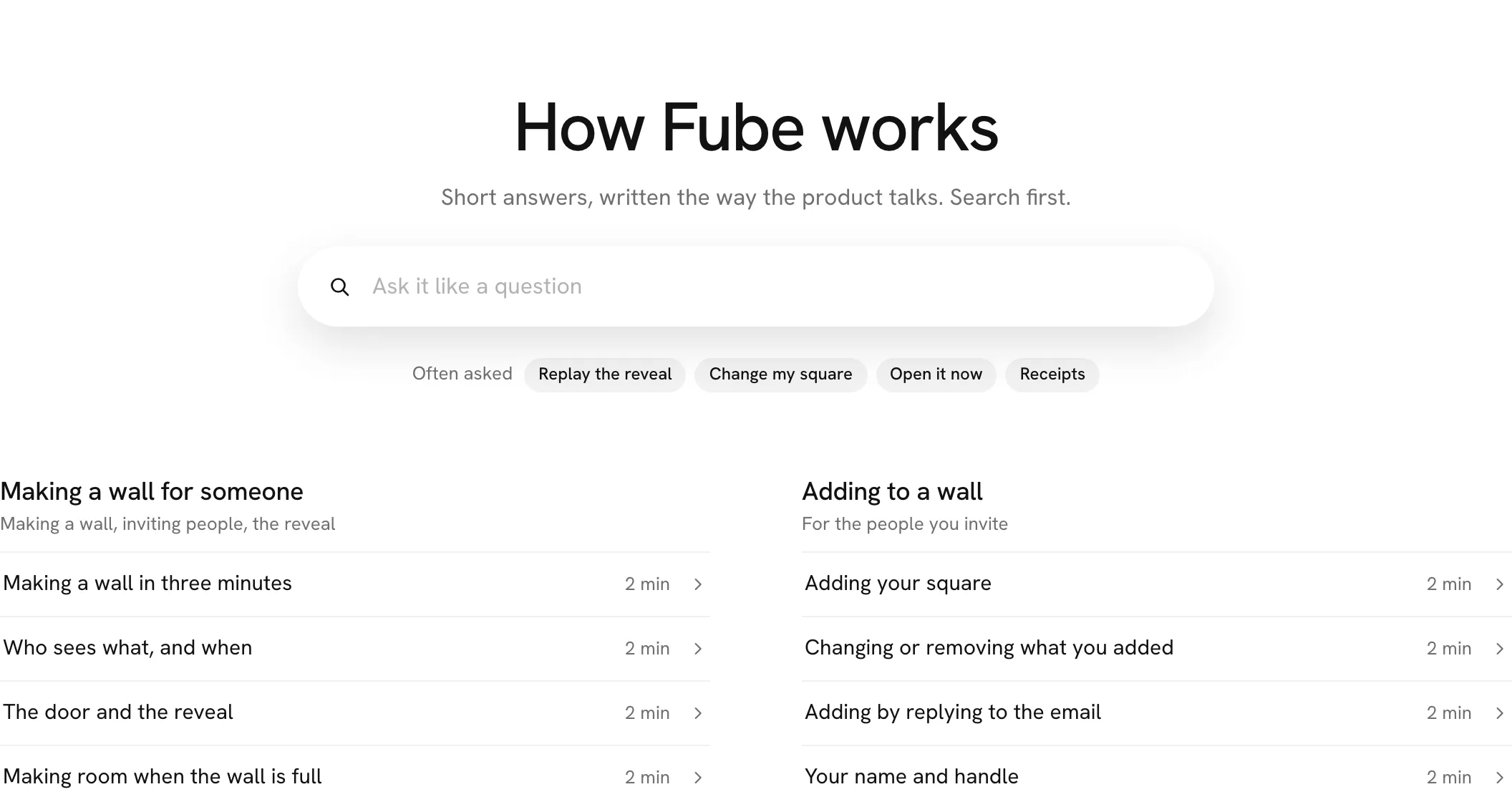
Three new pages in the guide. Help now explains answering someone's square, making your version of a wall and making a Moment, with pictures and short videos of each. A group with more than six pages ends in See all, which opens the rest.
Back to the square after an answer. When you answer someone's square with Add to this, you now land back on their square once yours is added, with yours in the row under it, instead of on the wall. Closing the composer without adding takes you back to the square too.
Walls open sooner. A wall shows up a moment sooner, most of all on a slow connection: what you only need once you open a square now loads just after the wall appears, ready before you tap. Very big walls also send a little less to find every square, and switching from the keyboard to the mouse no longer makes a big wall stutter.
Find steps aside for the welcome card. On a phone, the magnifier no longer sits on the corner of the card that greets you on your first visit. It comes back as soon as the card goes.
Easier to tap "the terms". The link under sign-in now answers a fingertip a little above and below the words, as every other control does.
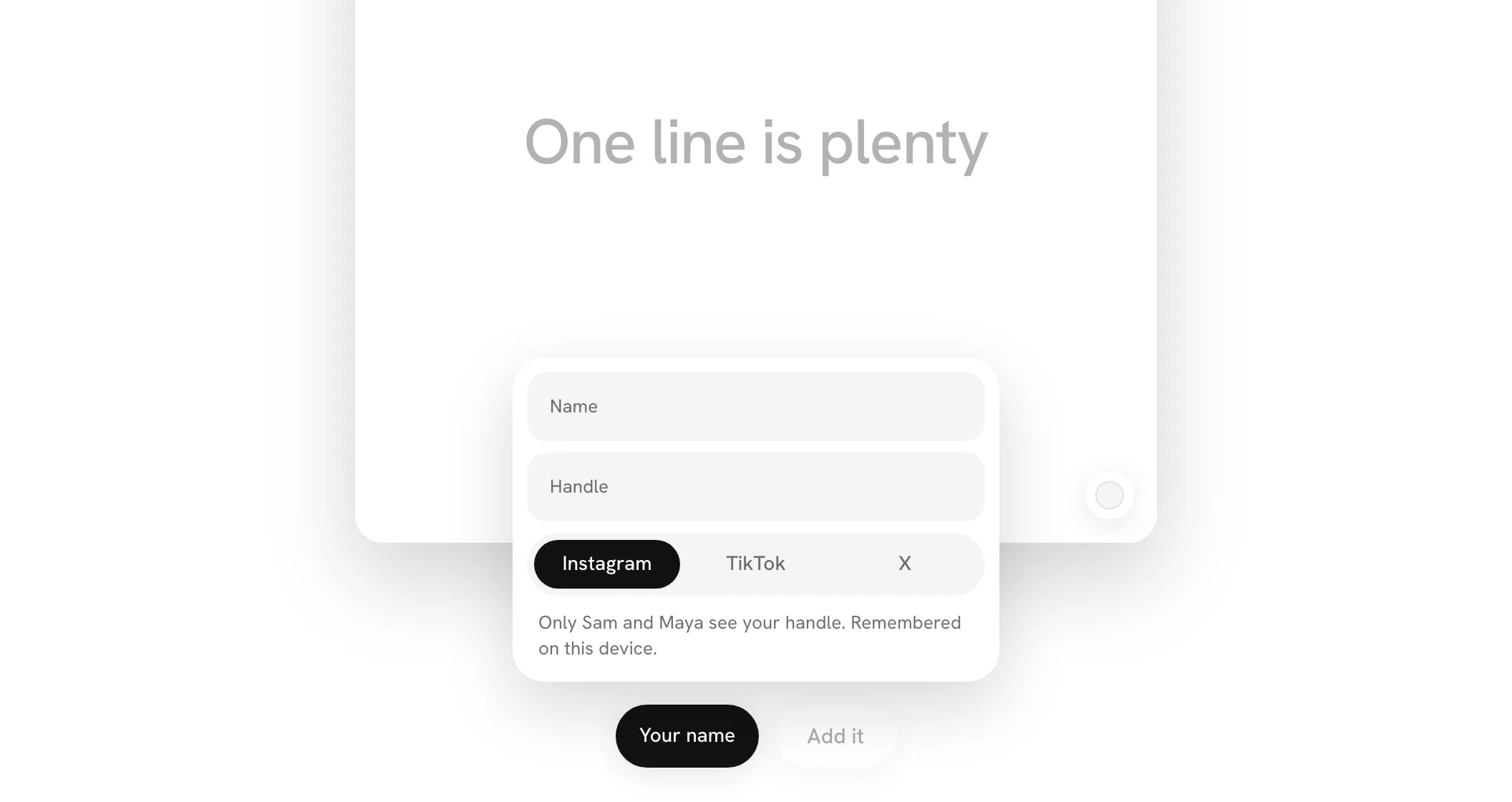
Your name, without a card in the way. Adding from a new device, the card that asks your name no longer opens over your square. The black Your name pill beside Add it pulses instead, and Add it waits until you've pressed it and given a name. A name is all it needs: the handle field now says Optional.
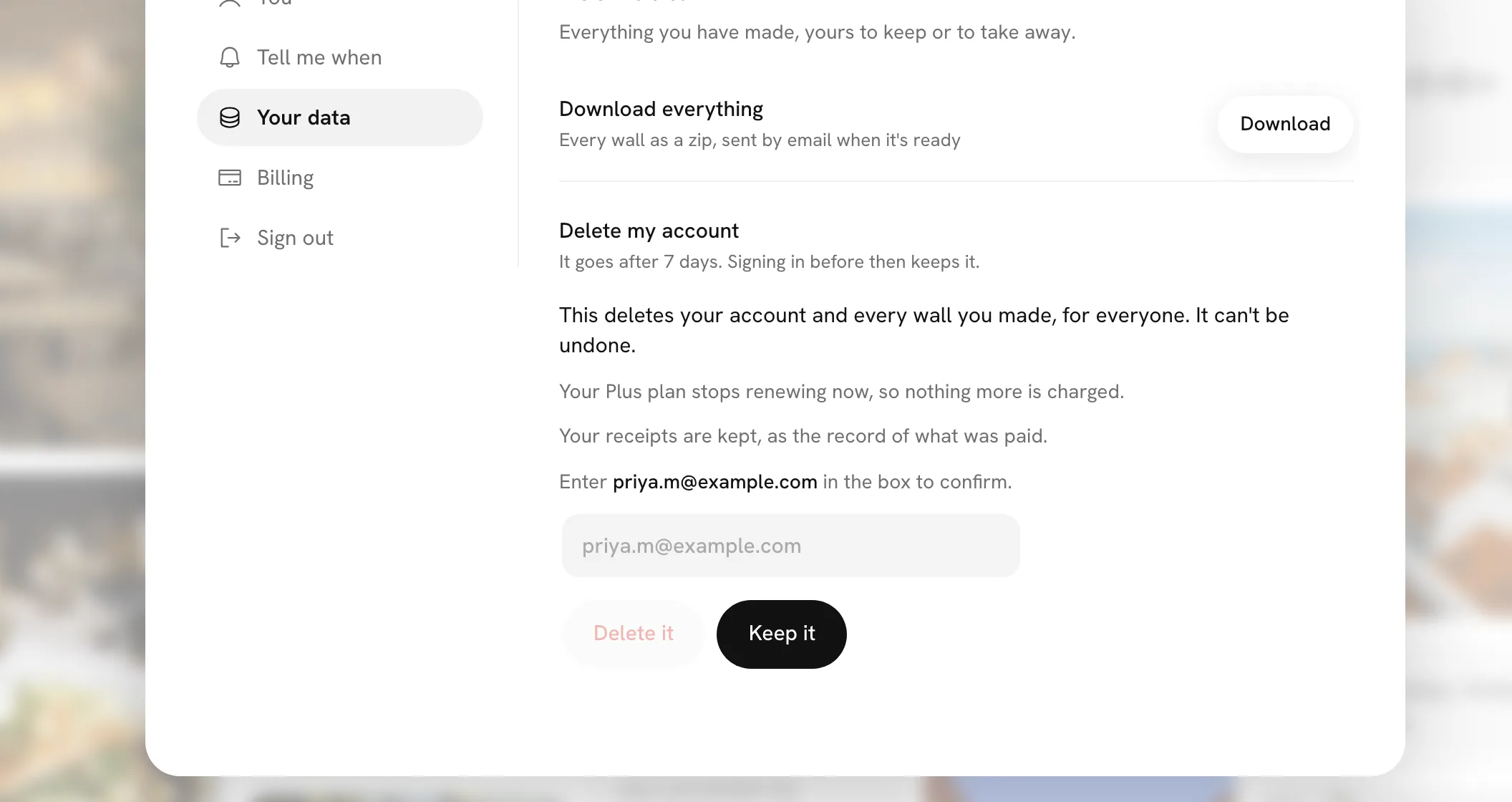
Deleting a big wall works. Deleting a wall with a great many squares and people on it, or an account with many walls, could take too long and fail. It now finishes in a moment, however big the wall.
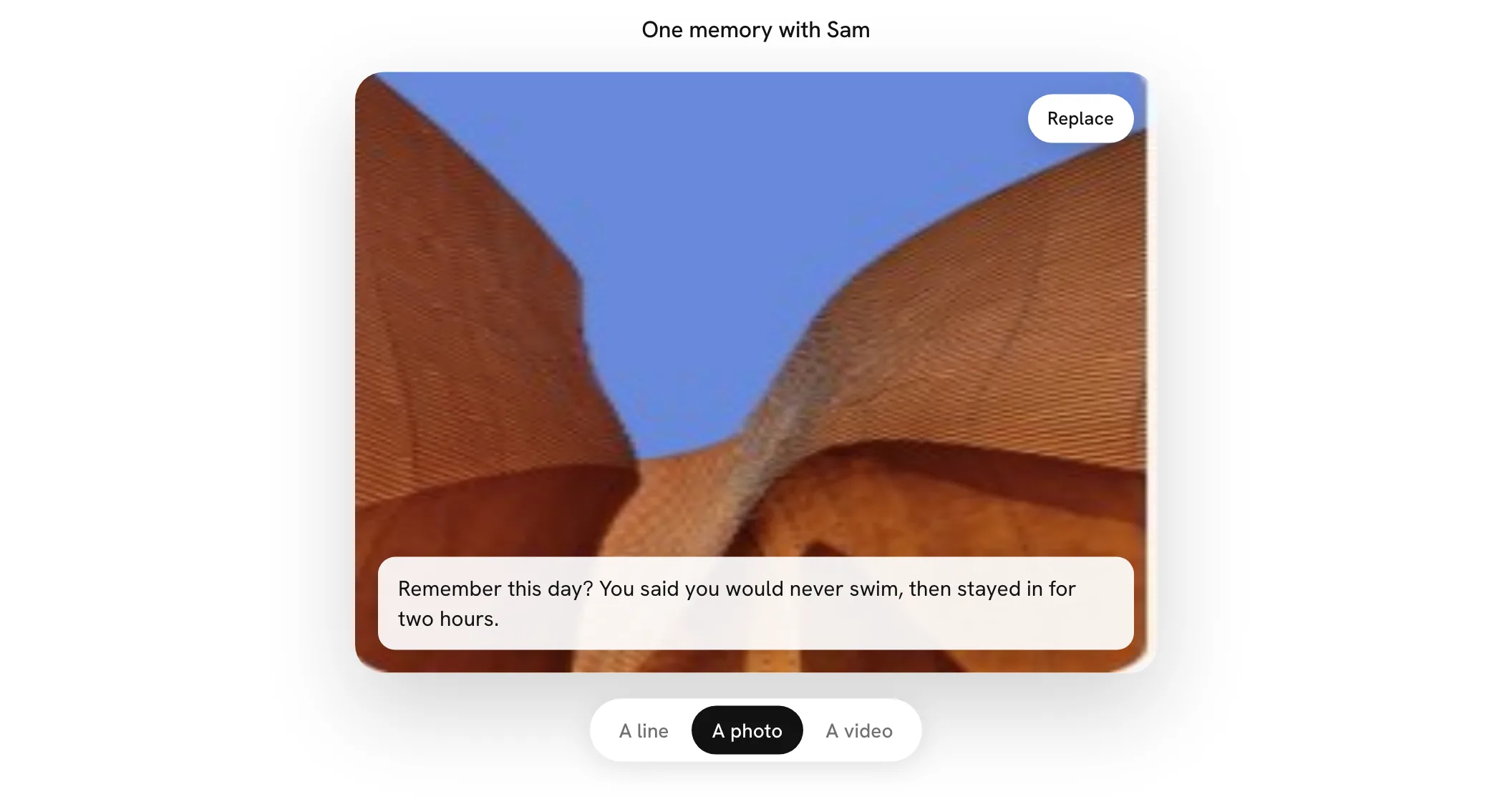
Take it there, or pick it, and say a line. A photo or a video's square now offers both: Take a photo, or Record a video, opens your camera right in the square, and Pick a photo or Pick a video chooses one you already have. A video records with one press of the circle and stops with another, or on its own at 10 seconds. On a phone with two cameras, Flip turns to the other. Once a photo or a video is in, a card across its bottom takes a line, if you like, up to 200 characters. It shows under your name when the square is opened, and on the square when someone zooms in close. Replace and Again have moved to the top-right to make room.
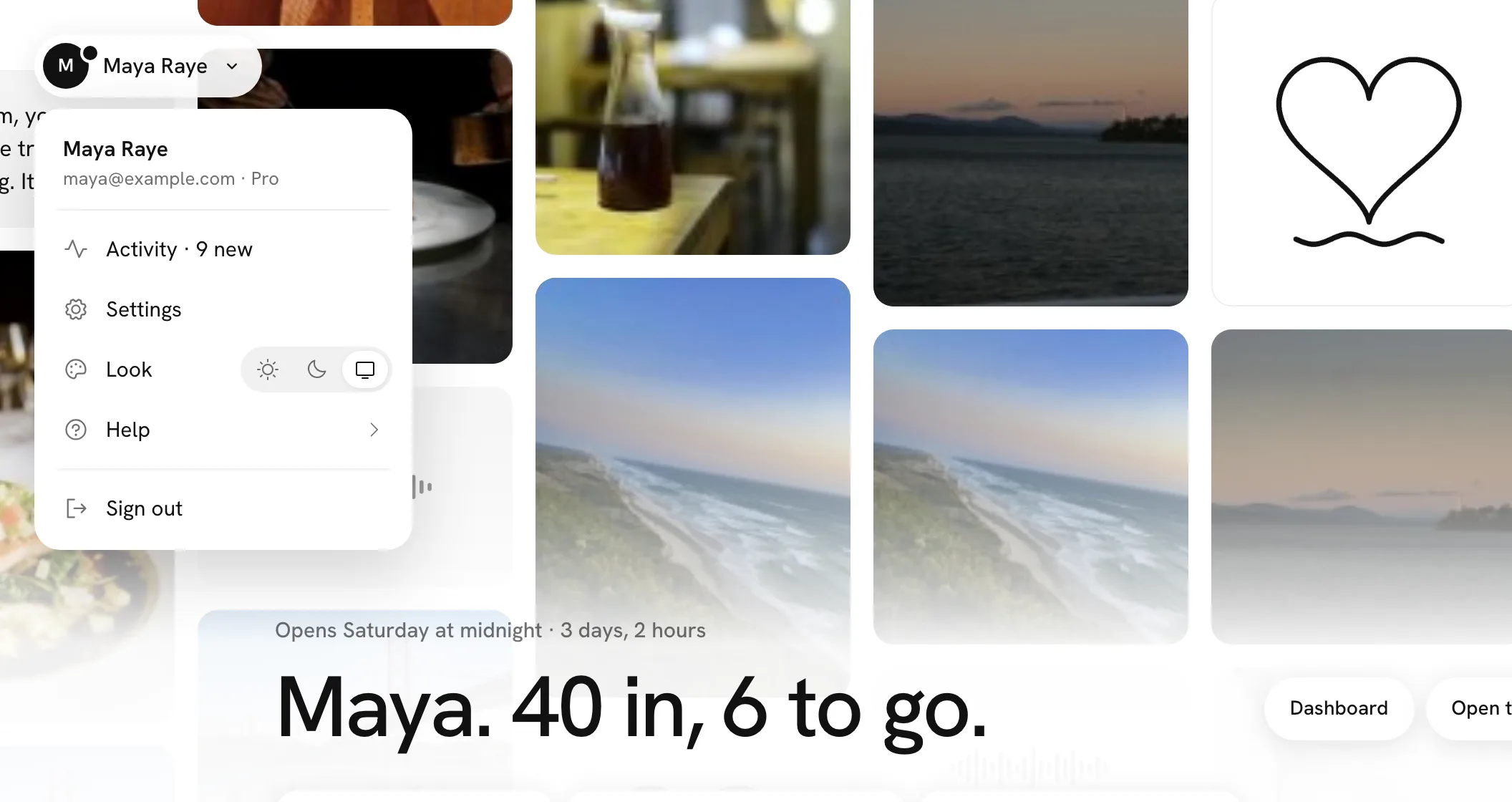
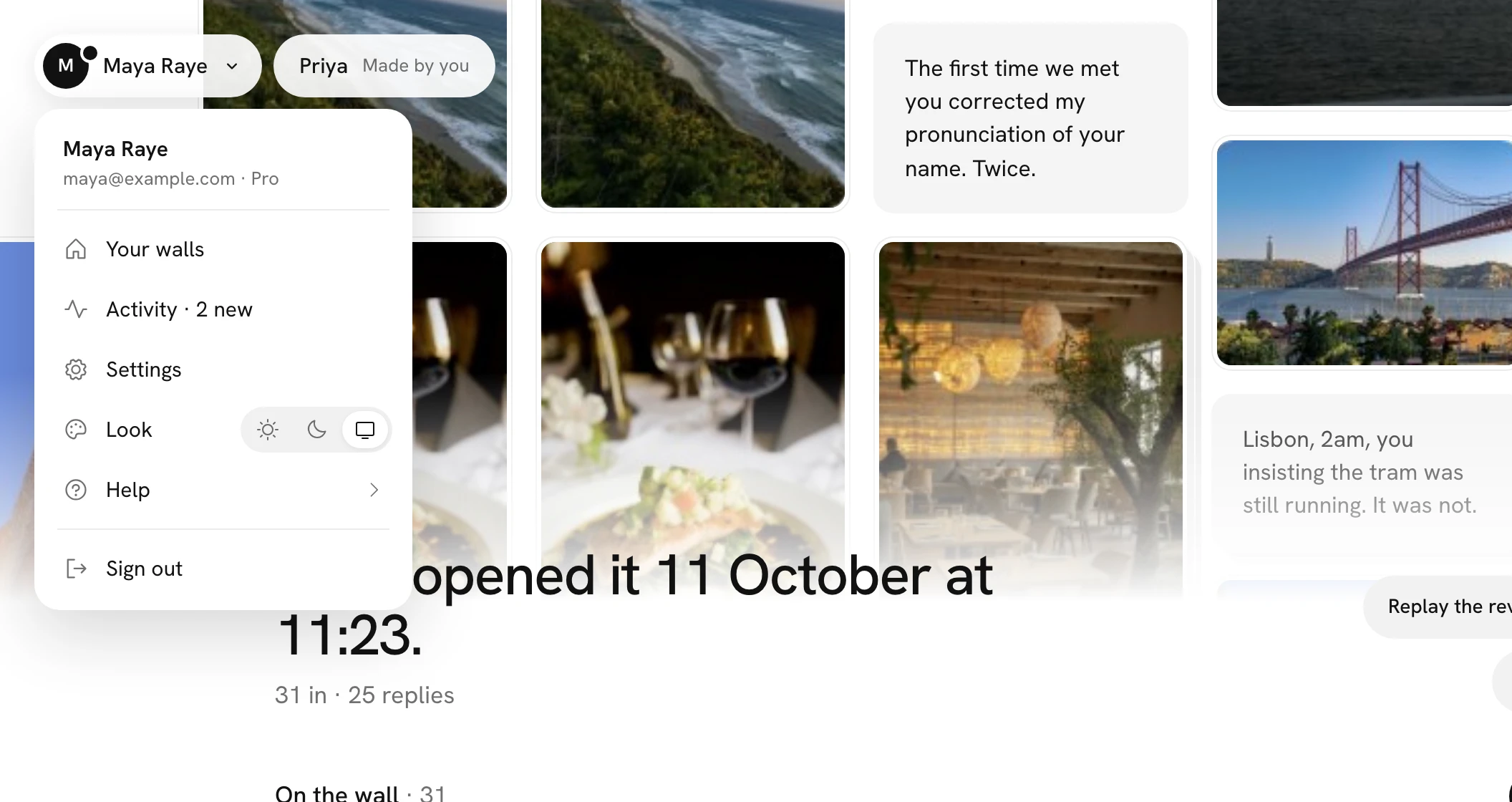
Your walls in your menu. The menu under your name now starts with Your walls, so Home is one press away from anywhere in Fube.
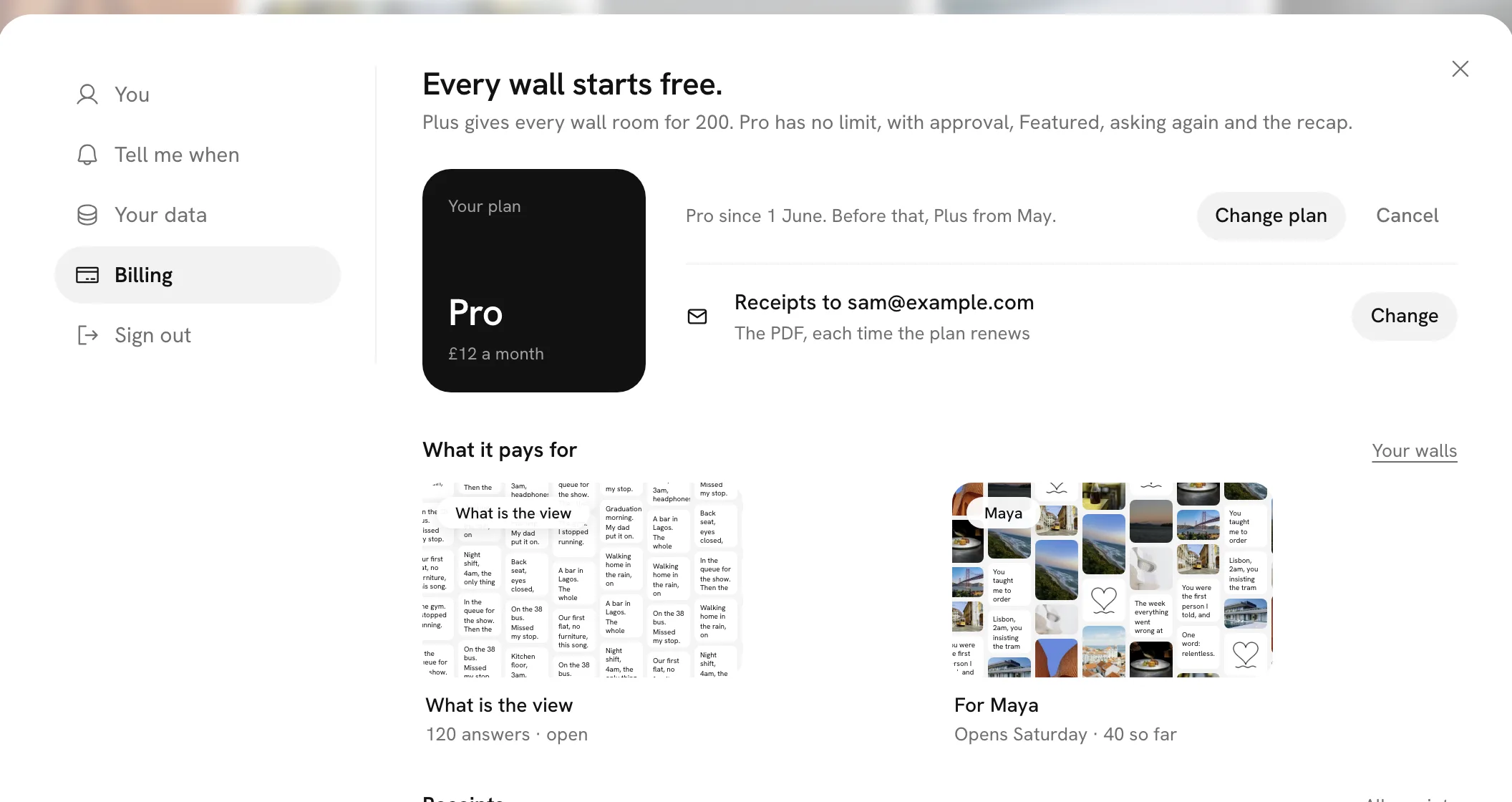
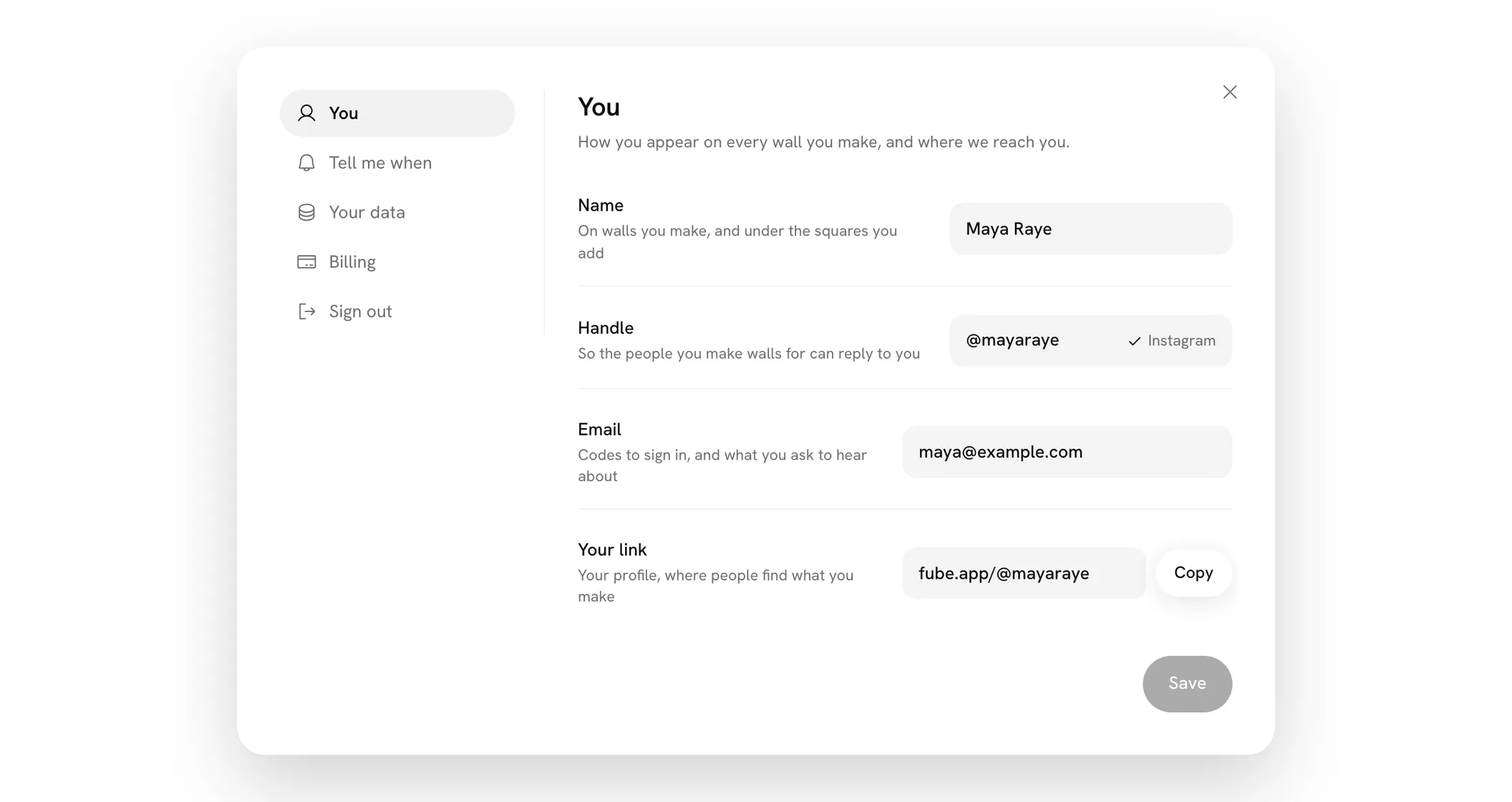
Settings opens over the page you were on. Settings, Billing, checkout and Your feedback now open over the page you were looking at, softened behind them, rather than over a stand-in wall. Close them with the × in the corner, a press anywhere outside, or Escape, and you are back where you were. Every card in Fube now has an × and closes when you press outside it.
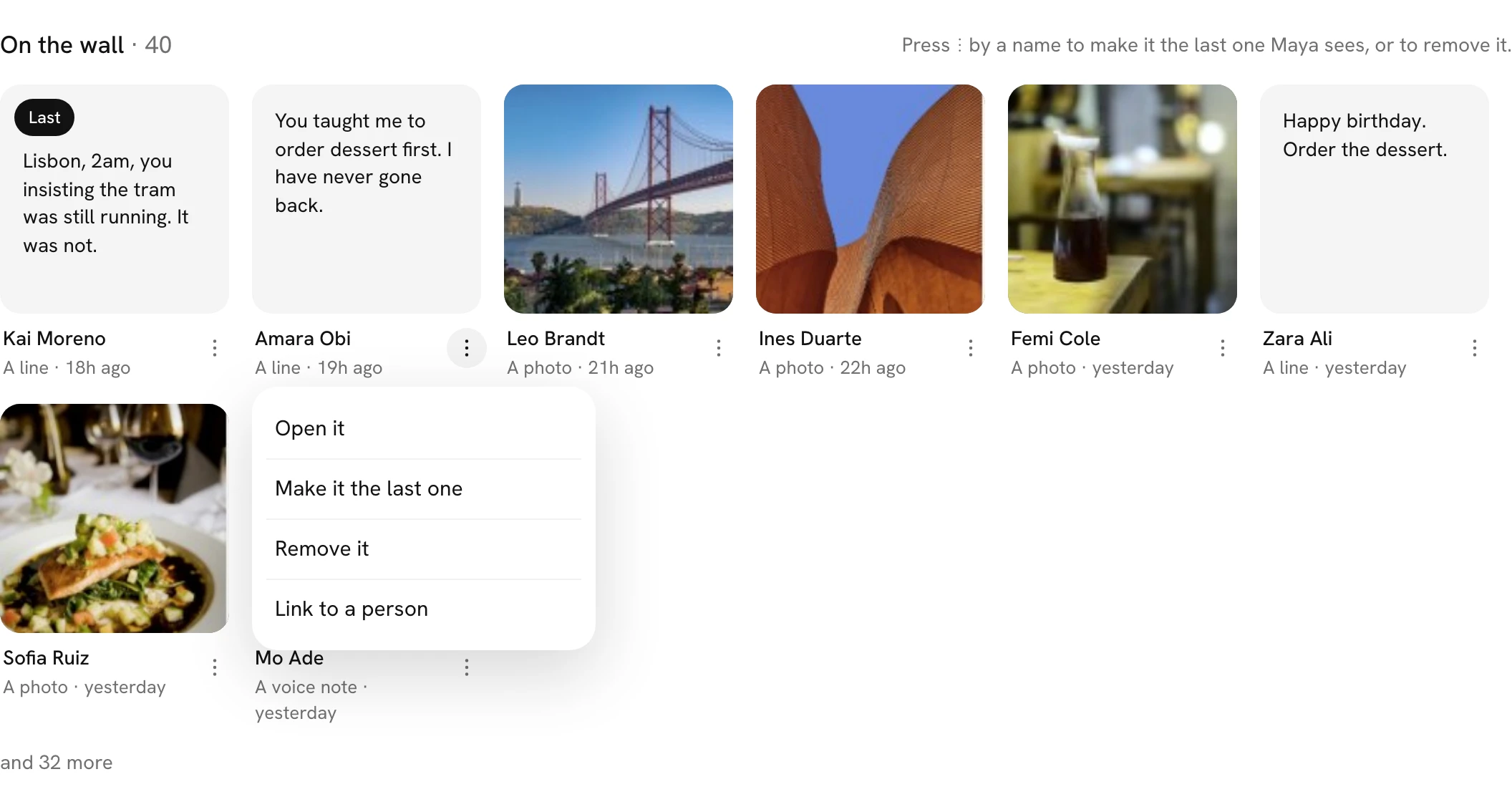
Press a square to open it. On your page for a wall, pressing a square under On the wall now opens it. Making it the last one, removing it and linking it to a person have moved to the ⋮ beside its name.
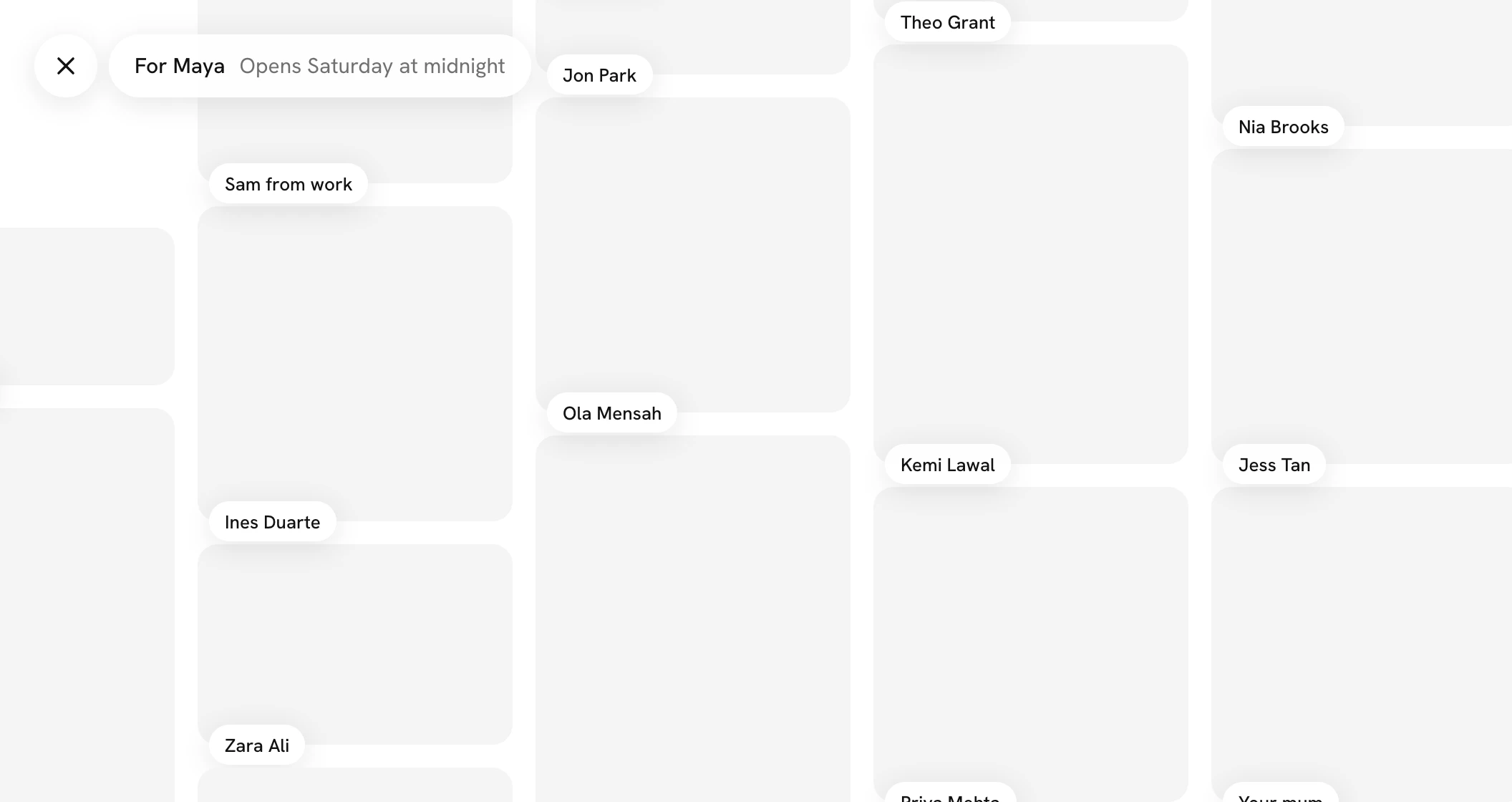
A way back from a wall. Open a wall from Home or from your page for it, See it as included, and a white × sits before the wall's name at the top left. Press it and the wall steps back to where you came from.
Take a reaction back. Tap the emoji you reacted with again and your reaction comes off, its count going down by one.
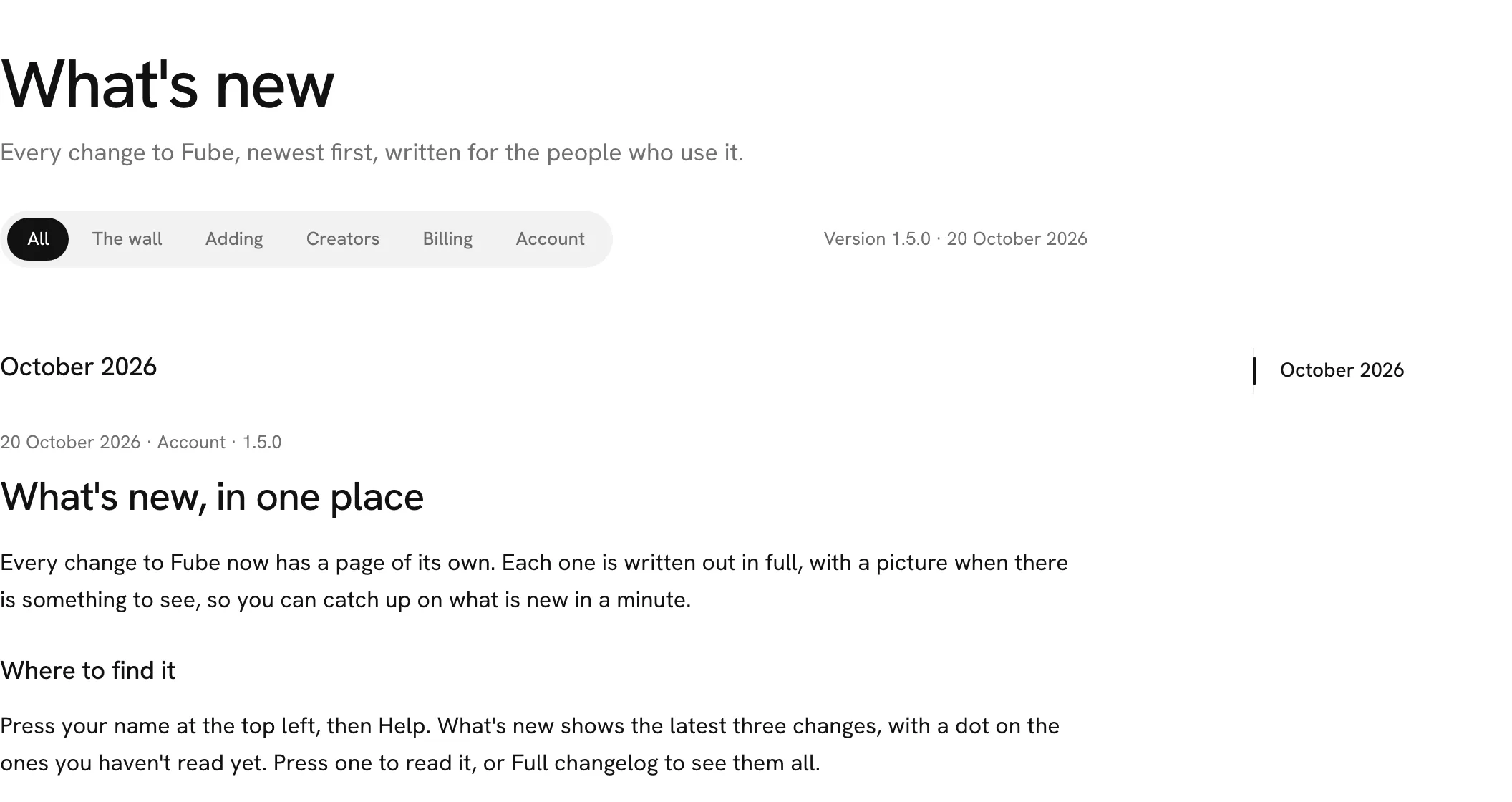
What's new is easier to read. This page now sits in the middle of the screen, each change starts under a line with a bigger, heavier title, and the pictures and videos further down load only as you get to them, so the page stays quick however long it grows.
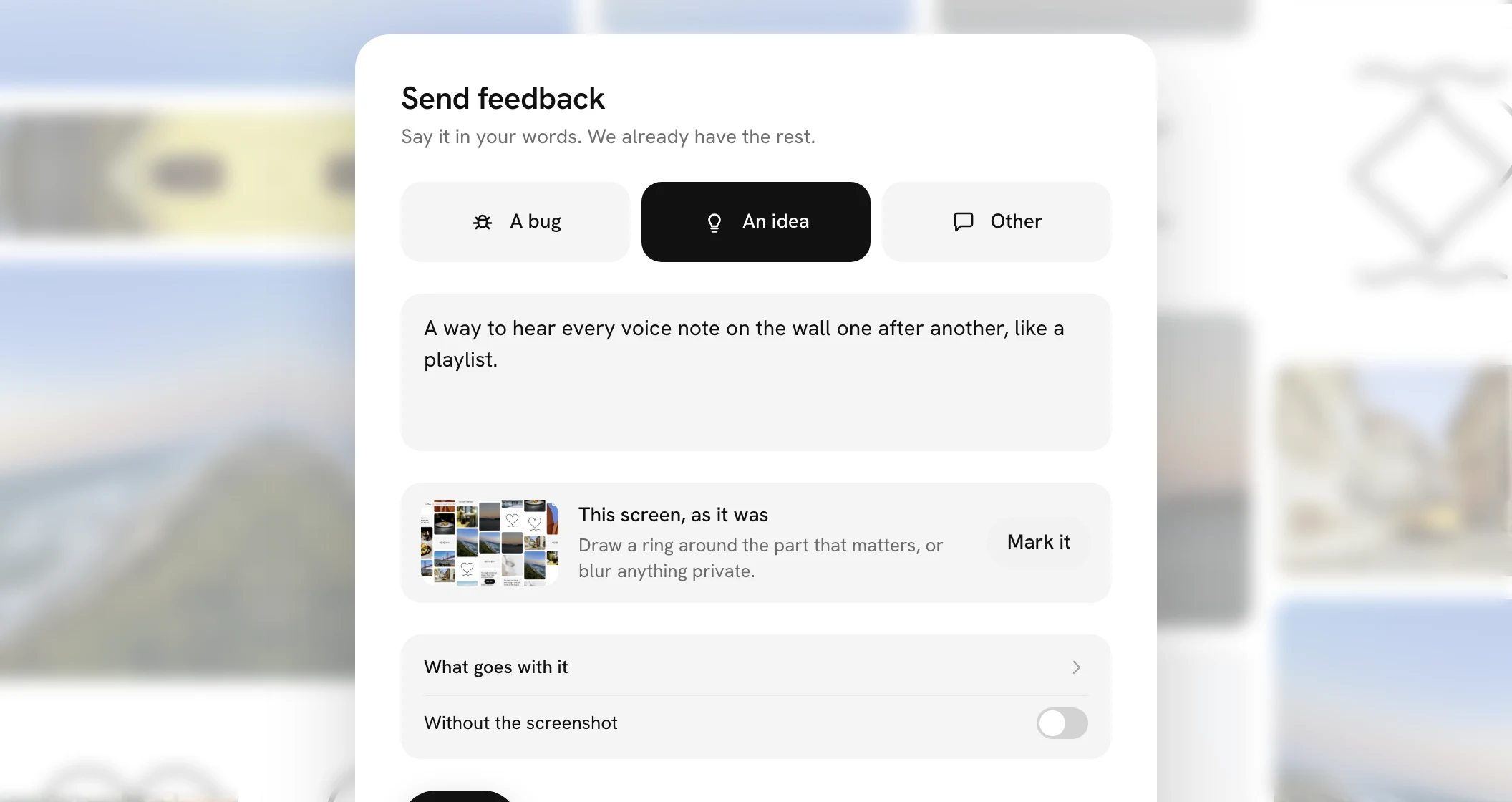
Message us opens Send feedback. Something not right? Message us, at the foot of your page for a wall, now opens Send feedback right there instead of your email app.
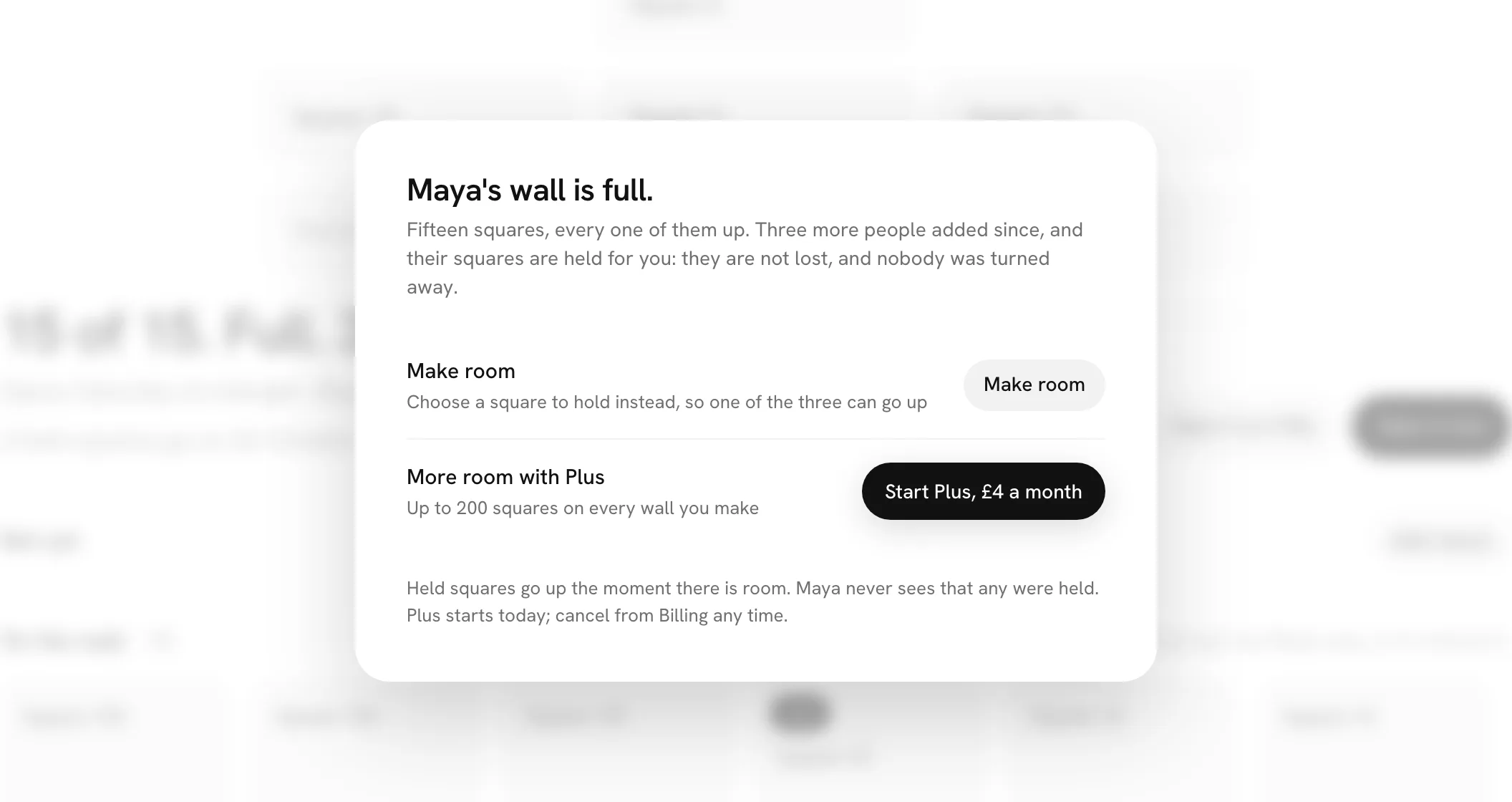
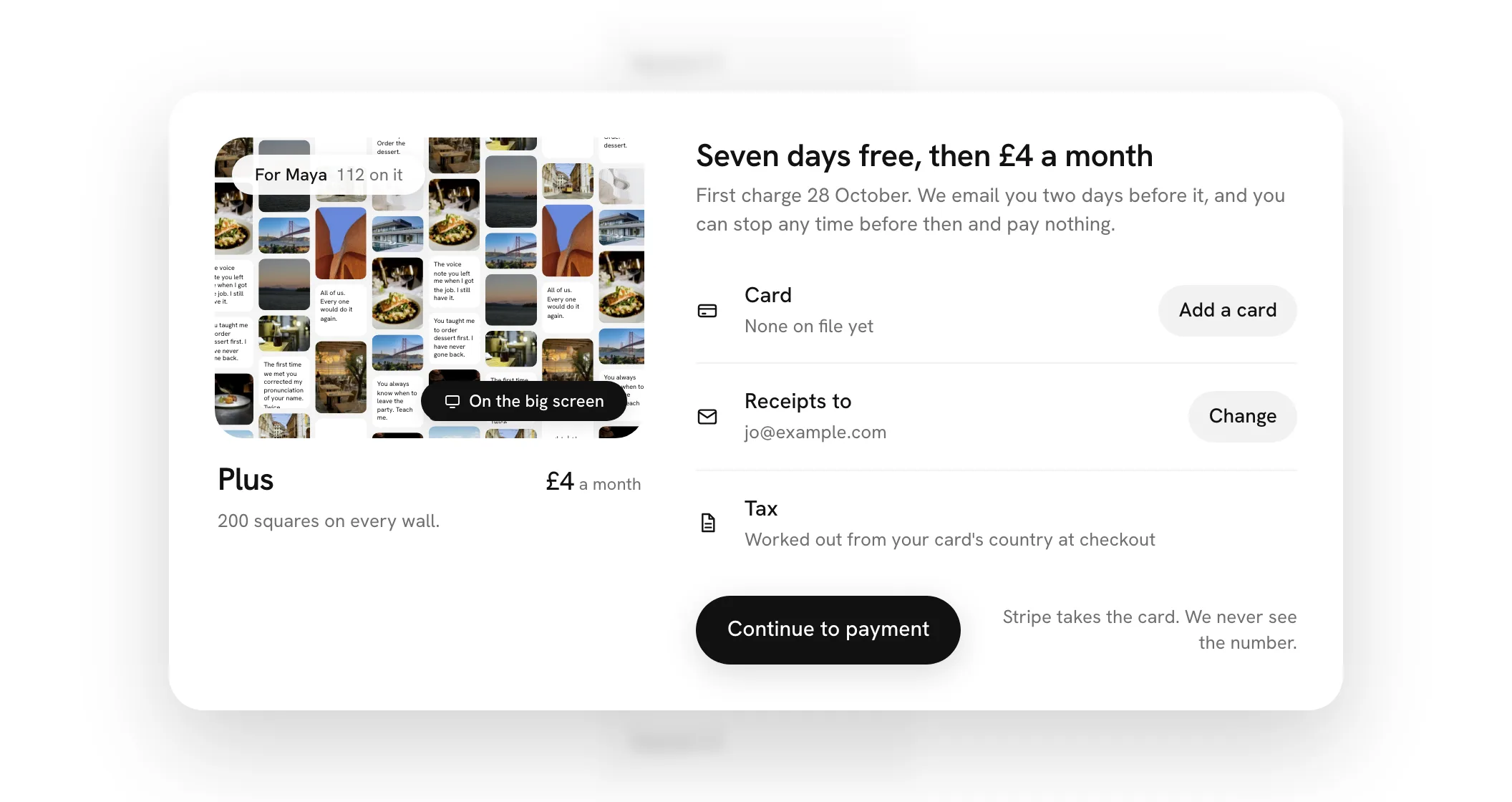
Checkout comes back to where you were. Choosing a plan in Billing, on Plans or from Make room now opens checkout over the page you were on, and its × takes you back there instead of somewhere else. Closing Settings, Billing or Your feedback after opening them from a link now goes back to the page you came from, and never opens one card over another.